


Purple IPTV: Installation and Setup with Tvsmarte
Learn how to install and set up Purple IPTV with your Tvsmarte subscription. Featuring a sleek, next-generation UI available across all platforms, Purple IPTV delivers fast channel zapping, multi-screen streaming, and flawless sync for your 4K bouquets and VOD libraries using the Xtream Codes API.
- An active Tvsmarte subscription with your Xtream Codes or M3U credentials
- The Purple IPTV app installed on your smartphone, Smart TV, or streaming box
- A steady Internet connection (fiber or high-speed broadband > 15 Mbps)
Why Use Purple IPTV with Tvsmarte
A polished, modern interface designed across all platforms and optimized for high-definition streaming.
Elegant dark mode interface displaying high-resolution movie posters and crisp network logos.
Manage multiple profiles with independent favorites lists and personalized parental controls.
Stream multiple sporting events side-by-side and catch up on missed broadcasts up to 7 days back.
Installation and Setup of Purple IPTV — Step-by-Step
Follow each detailed step below to configure your Tvsmarte streams in Purple IPTV.
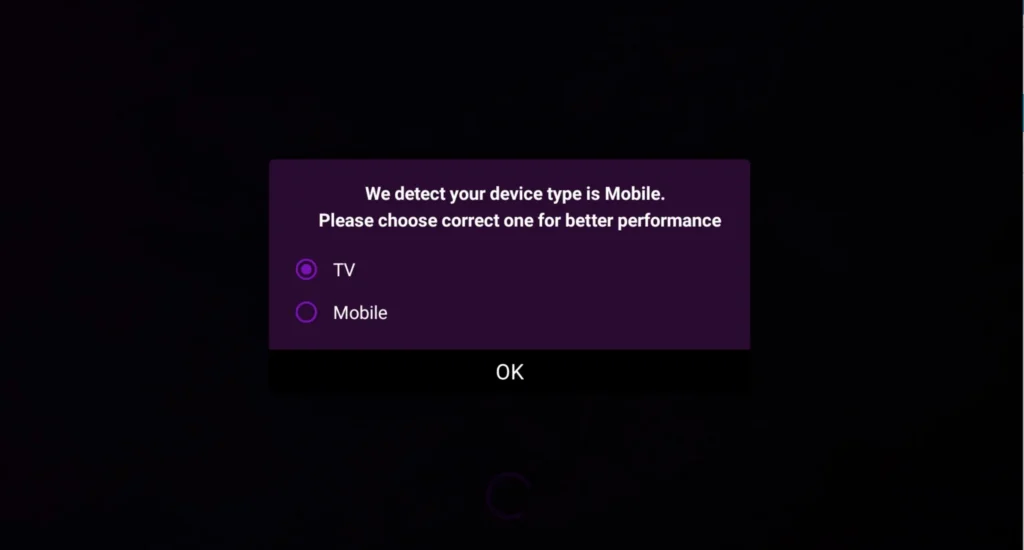
Step 1: Choose Display Mode on First Launch
When launching Purple IPTV for the first time, select the layout optimized for your device: choose 'TV' for Smart TVs, Android TV, and Fire Stick, or 'Mobile' for smartphones and tablets.
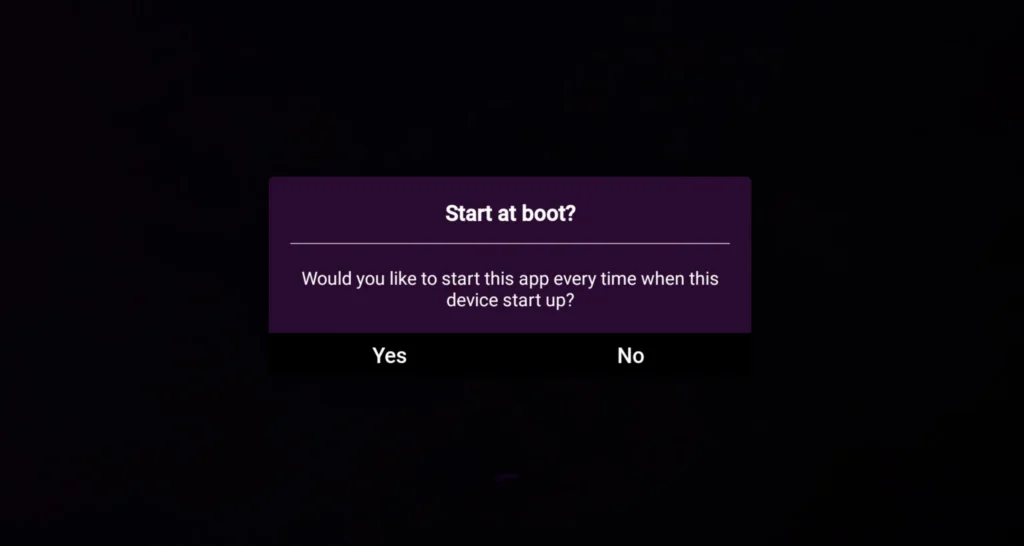
Step 2: Select Connection Method
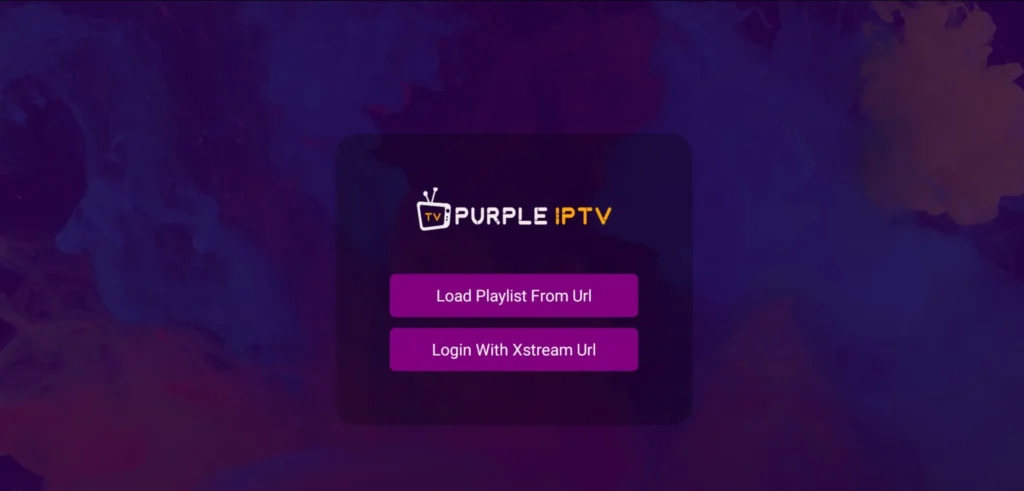
On the login screen, choose 'Login with Xtream Code API' for seamless integration with Tvsmarte. You can also select 'Add Playlist' if you are using an M3U file or URL.
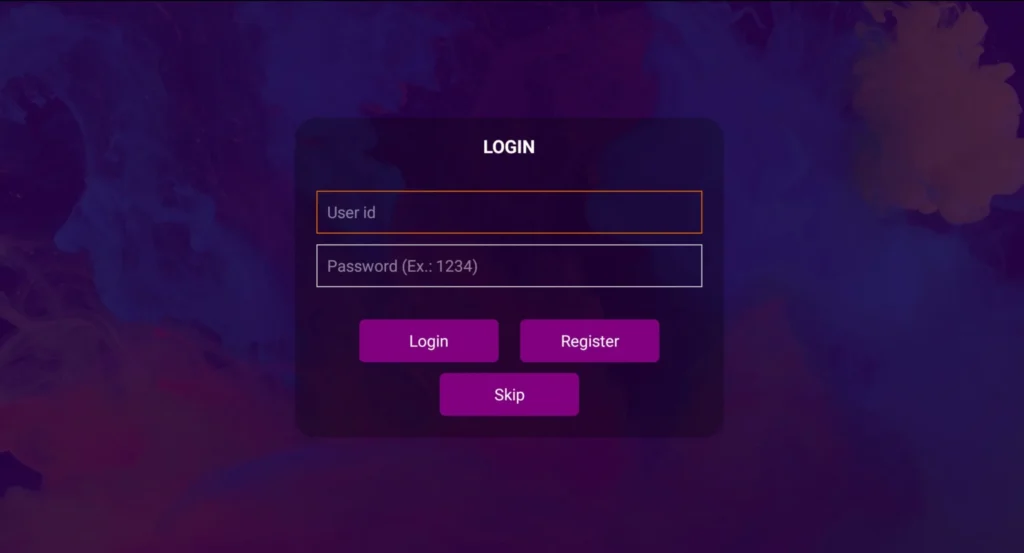
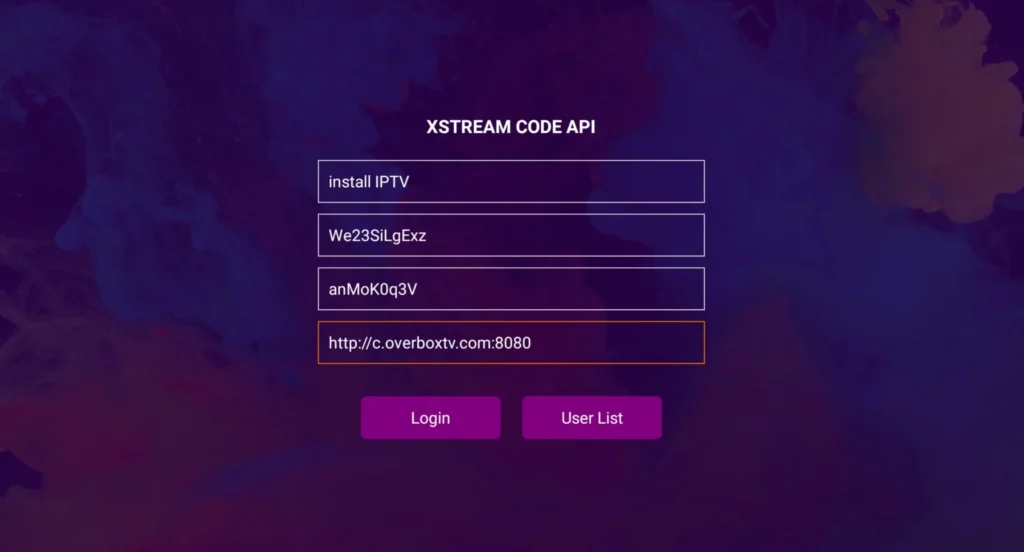
Step 3: Enter Your Tvsmarte Credentials
Fill in the required fields: name your account (e.g., 'Tvsmarte'), enter your username, password, and the server URL provided by our team. Click 'Login' to connect.
Step 4: Automatic Catalog Download
Purple IPTV connects to our Anti-Freeze™ 9.3 infrastructure and automatically downloads live channels, movies, series, and electronic program guide (EPG) data.

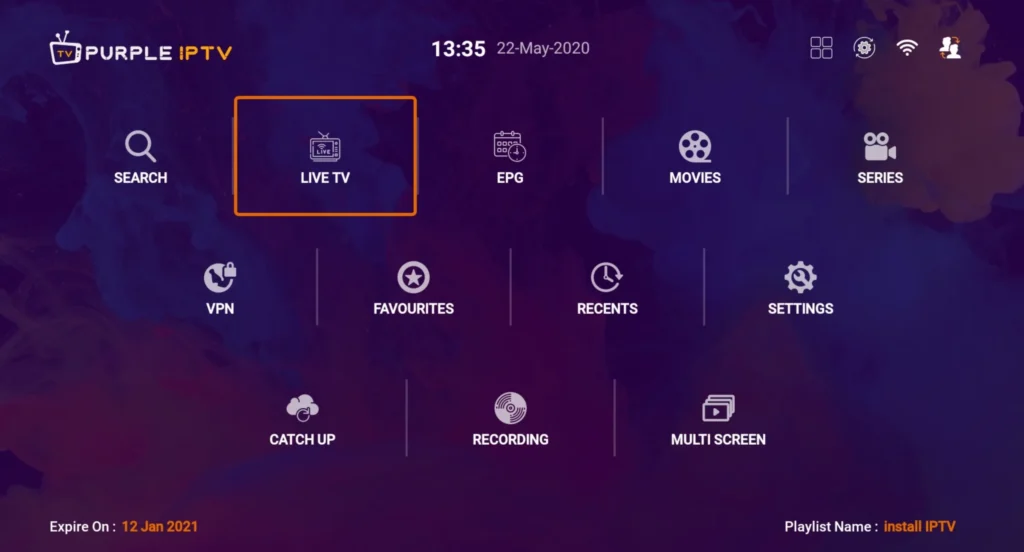
Step 5: Main Dashboard
Once the download completes, you will reach the home dashboard featuring quick shortcuts to Live TV, Movies, Series, and Live with EPG.
Step 6: Browse Channel Categories
Enter the Live TV section to browse Tvsmarte channel bouquets organized by country and category (4K Sports, Entertainment, Premium networks).
Step 7: Advanced Video Player Controls
The built-in video player includes an on-screen menu to switch audio language tracks, toggle subtitles, or switch the internal rendering engine to ExoPlayer.
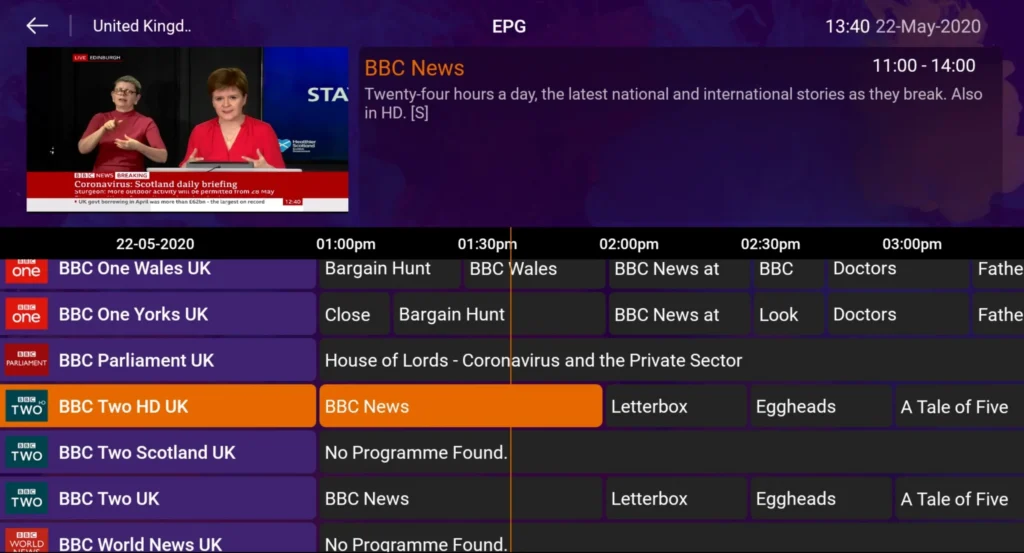
Step 8: View the Interactive EPG Guide
Switch over to the EPG view to browse complete live programming schedules in real time and schedule reminders for upcoming games or shows.
Common Issues on Purple IPTV and Solutions
Quick verified solutions from our team to resolve common issues on Purple IPTV.
'Login failed' error message
Double-check your username, password case-sensitivity, and server URL. Make sure the server URL does not include a trailing slash ('/') unless specifically instructed.
Buffering or frame drops on 4K Ultra HD
In Purple IPTV settings, open 'Player Settings' and select 'Hardware Decoder' or 'ExoPlayer' to harness your TV's graphic processor.
Incomplete EPG guide data
Open the application settings and click 'Refresh EPG' to update the latest XMLTV schedules from our servers.
FAQ: Purple IPTV with Tvsmarte
Everything you need to know about using Purple IPTV with your subscription.
The app includes a fully functional free edition. A paid Pro version removes advertisements and unlocks multi-screen viewing.
Yes, Purple IPTV is officially available in the Amazon Appstore for Fire TV Stick and Fire TV Cube.
Yes, you can secure any sensitive category (such as adult content) behind a 4-digit security PIN.
Activate Your Tvsmarte Subscription Now
Receive your Xtream Codes credentials and M3U link in under 5 minutes via email and WhatsApp. Test risk-free with our 7-day money-back guarantee.