


GSE Smart IPTV: Installation and Setup with Tvsmarte
Discover how to configure GSE Smart IPTV with your Tvsmarte subscription. Renowned for its versatility and robustness, this cross-platform solution supports both M3U playlists and Xtream Codes API credentials for seamless live TV and catch-up streaming.
- An active Tvsmarte subscription with your M3U link or Xtream Codes credentials
- The GSE Smart IPTV app installed on your smartphone, tablet, or TV box
- A stable internet connection (at least 15 Mbps for 4K Ultra HD streams)
Why Use GSE Smart IPTV with Tvsmarte
A versatile, feature-rich player offering advanced video codec controls and XMLTV EPG integration.
Switch between the internal engine and external players (VLC, MX Player) to play any 4K stream smoothly.
Automatically import the Tvsmarte TV guide with scheduled updates and customizable time-zone offsets.
Record live sports broadcasts directly to your device's local memory or USB drive.
Installation and Setup of GSE Smart IPTV — Step-by-Step
Follow each detailed step below to configure your Tvsmarte streams in GSE Smart IPTV.
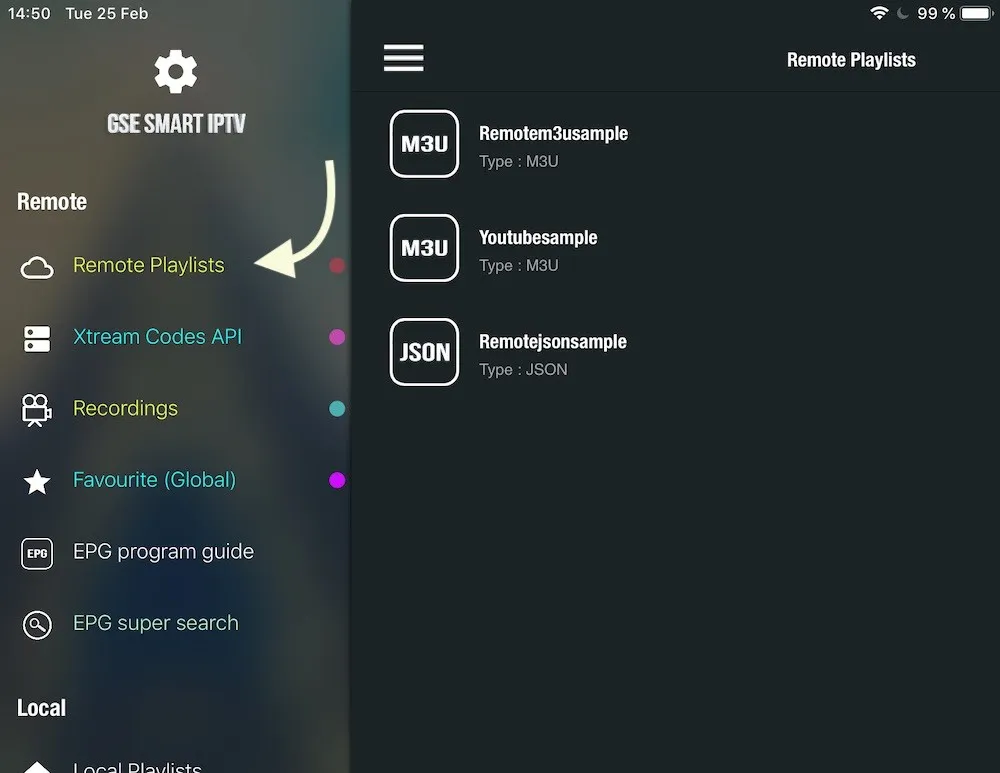
Step 1: Open the side menu and access remote playlists
Launch GSE Smart IPTV on your device. Tap the hamburger menu icon (three horizontal bars in top-left) to open the side menu, then select 'Remote Playlists'.
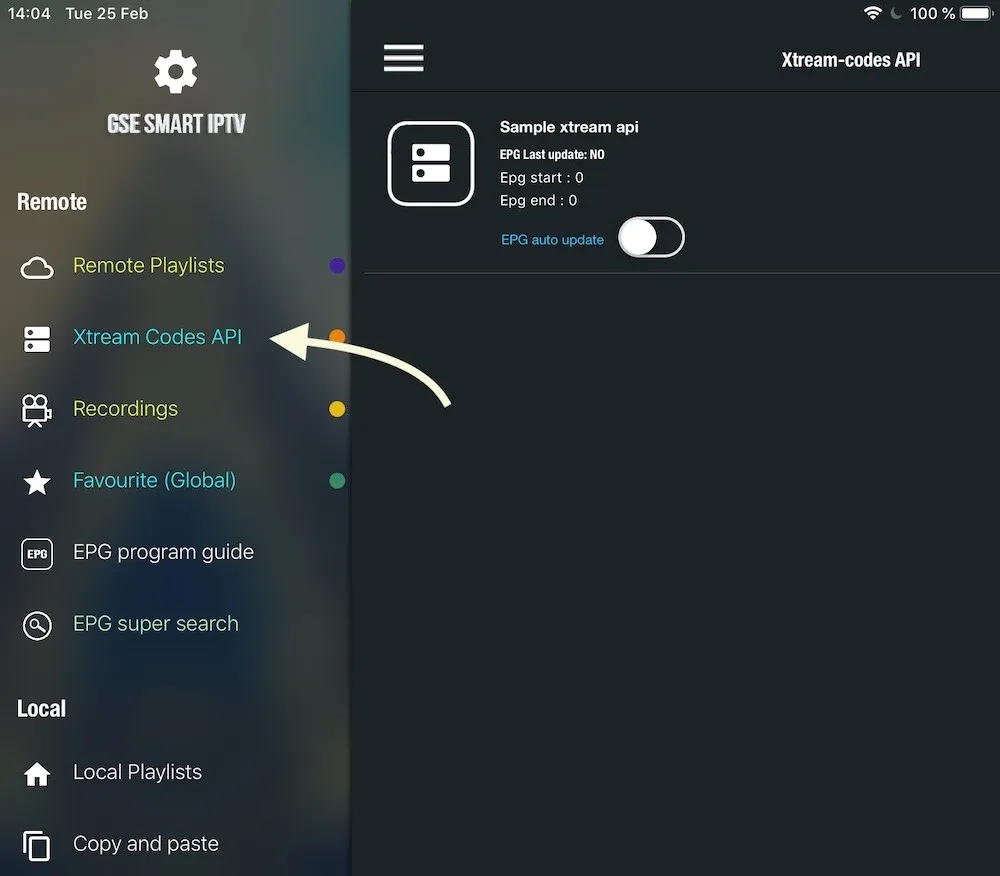
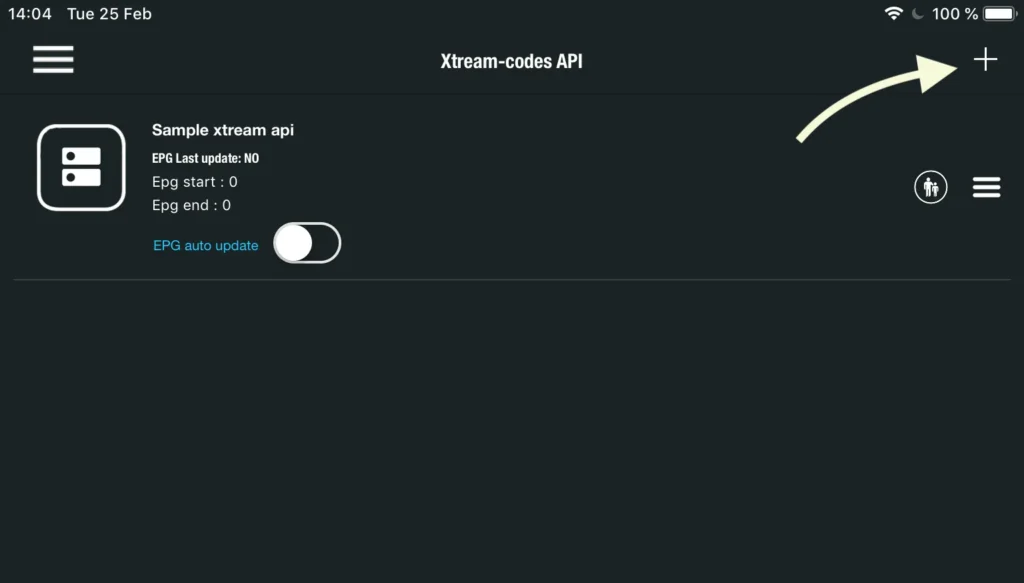
Step 2: Add a new M3U playlist or Xtream Codes
On the remote playlists screen, tap the circular red '+' button in the bottom right corner. In the popup menu, choose 'Add M3U URL' for playlist links, or 'Add Xtream-Codes API' for direct credentials.
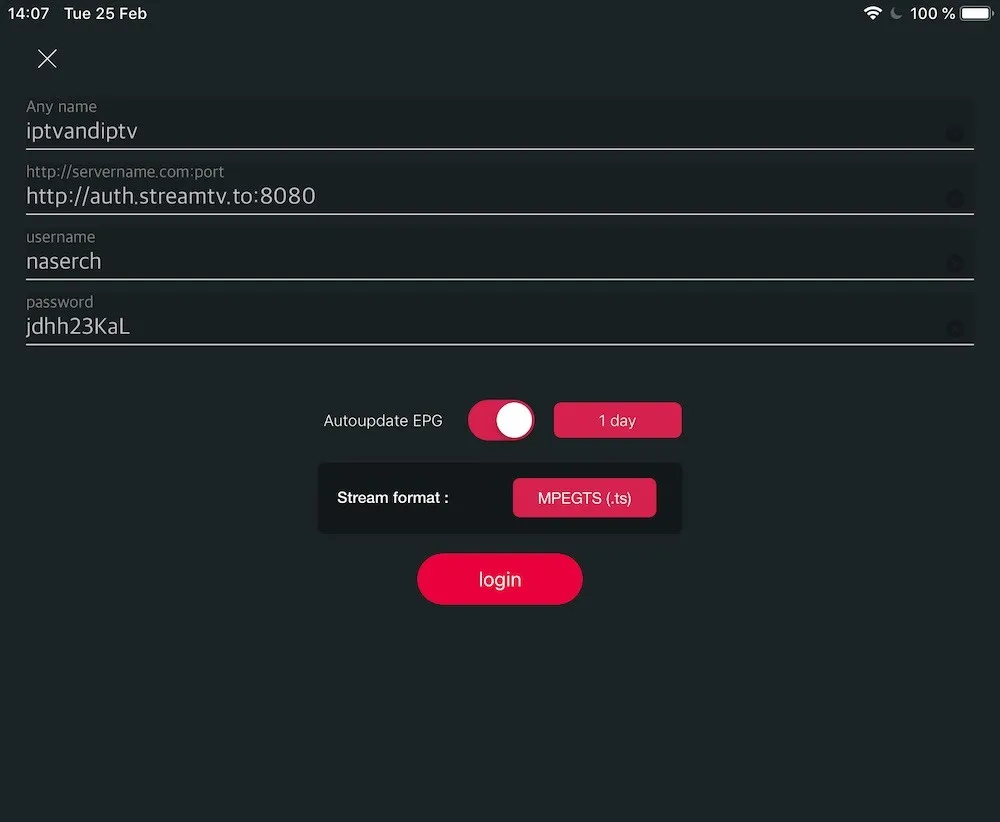
Step 3: Enter your Tvsmarte subscription details
Name your playlist (e.g., 'Tvsmarte 4K') and paste your complete M3U link into the 'Playlist link' field. Ensure there are no stray spaces at the beginning or end, then click 'Add'.
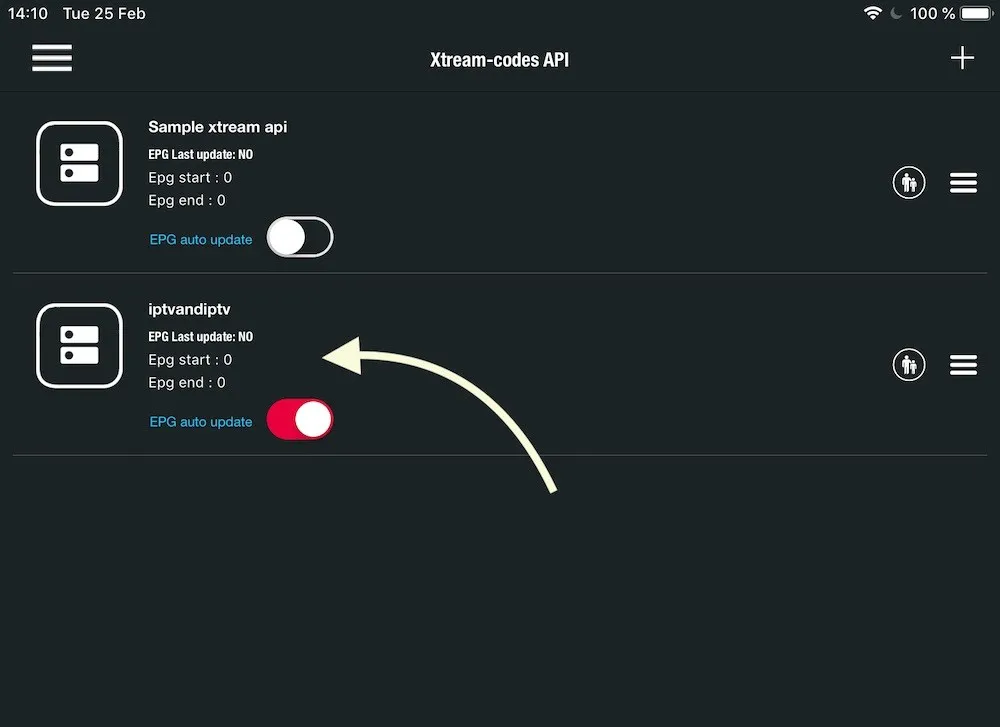
Step 4: Download and sync bouquets
GSE Smart IPTV connects to Tvsmarte servers and downloads the complete list of channels, movies, and series. A progress bar displays the category import status.
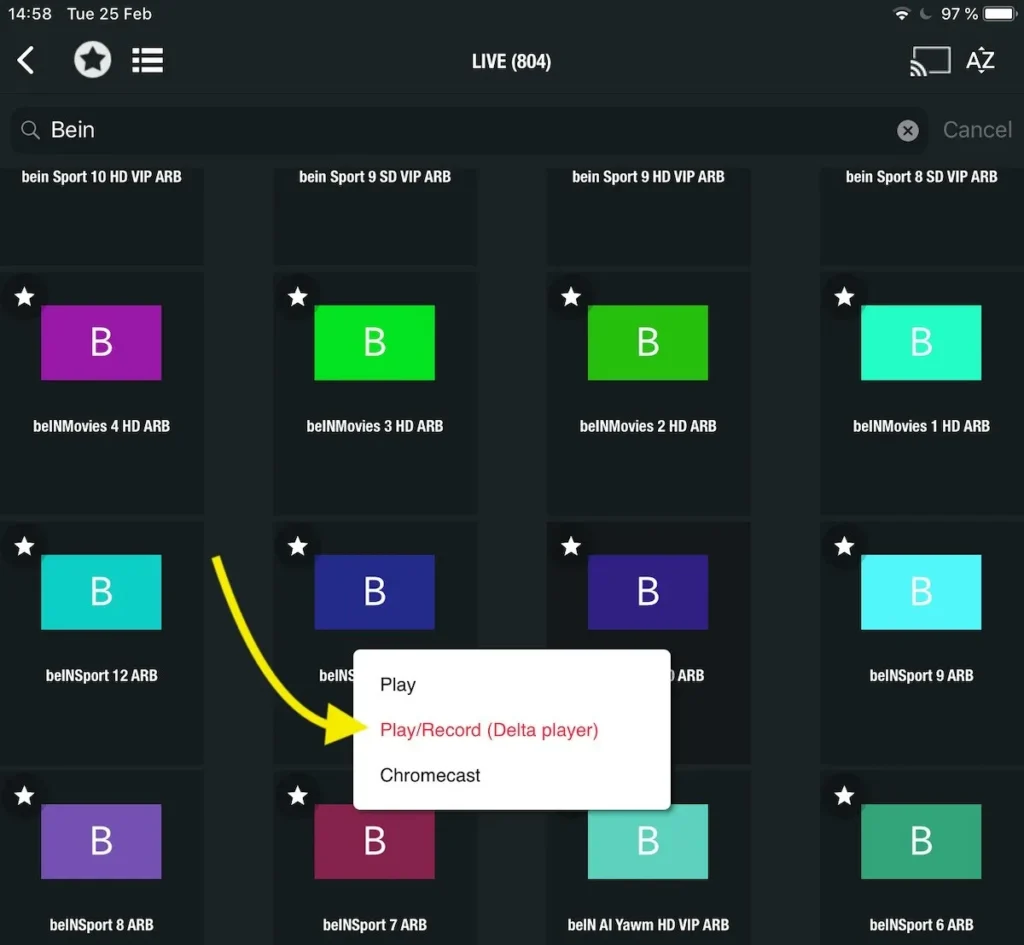
Step 5: Browse categories and stream live channels
Select your 'Tvsmarte 4K' playlist. You'll access the full directory organized by country and theme (4K Sports, Movies, Documentaries). Click any channel to start instant playback.
Step 6: Playback options and display controls
During playback, tap the screen to reveal the control bar. You can adjust aspect ratios (16:9, zoom), switch audio tracks, or enable subtitles available on your Tvsmarte streams.
Step 7: Synchronize the Electronic Program Guide (EPG)
To view current and upcoming schedules, navigate to the 'Electronic Program Guide' section. Tvsmarte EPG connects automatically. You can also force a refresh anytime using the sync button.
Step 8: Organize favorites and record broadcasts
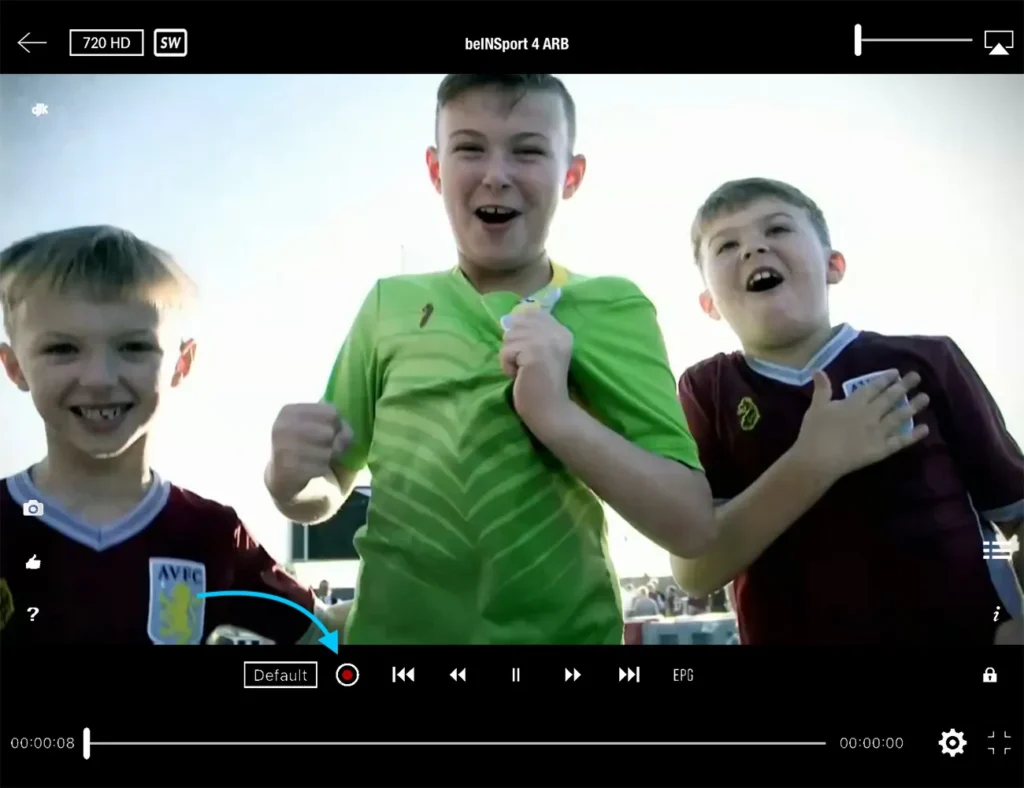
Add your top channels (sports, movies) to your favorites list by tapping the star icon. You can also schedule local recordings so you never miss major sporting events.
Common Issues on GSE Smart IPTV and Solutions
Quick verified solutions from our team to resolve common issues on GSE Smart IPTV.
Error downloading M3U playlist
Check that your internet connection is active and that the full M3U URL was copied without truncation. If the playlist is large, use Xtream Codes API mode for faster loading.
Stuttering or audio/video desync on 4K channels
In GSE Smart IPTV settings, navigate to 'Player Settings' and replace the default player with the external VLC player, or enable HW+ hardware acceleration.
EPG guide not showing for certain channels
Open the app's EPG settings and click 'Clear EPG Cache' followed by 'Force EPG Update' to reload Tvsmarte XMLTV feeds.
FAQ: GSE Smart IPTV with Tvsmarte
Everything you need to know about using GSE Smart IPTV with your subscription.
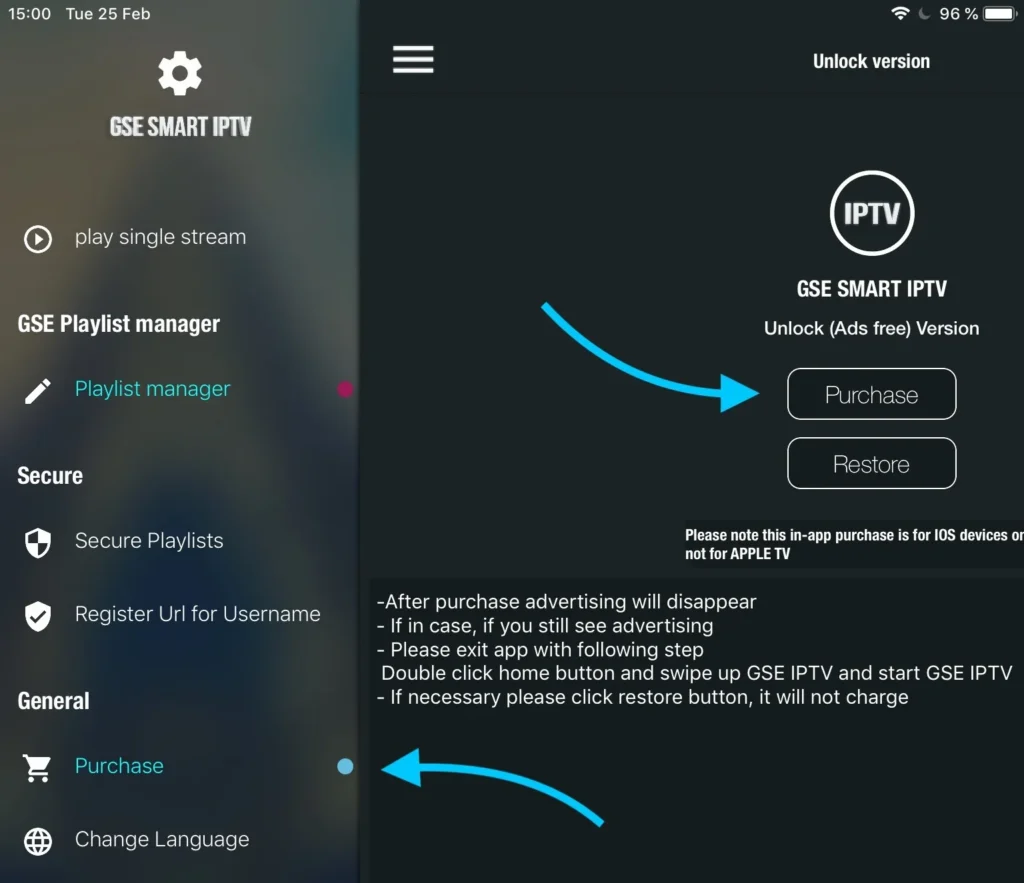
The app offers a functional free version with ads. A one-time in-app purchase removes ads permanently and unlocks advanced features.
Yes, GSE Smart IPTV is available on the tvOS App Store for Apple TV, as well as on iOS for iPhone and iPad.
While watching a live stream, tap the record button (red dot). The video file will be saved locally on your device's internal storage.
Activate Your Tvsmarte Subscription Now
Receive your Xtream Codes credentials and M3U link in under 5 minutes via email and WhatsApp. Test risk-free with our 7-day money-back guarantee.