


TiviMate: Installation and Setup with Tvsmarte
The definitive guide to installing and configuring TiviMate IPTV Player with Tvsmarte on Android TV, Google TV, and Amazon Fire TV Stick. Enjoy a premium big-screen TV interface tailored for remote controls, featuring an interactive TV guide and recording.
- Your Tvsmarte Xtream Codes credentials or M3U playlist link
- An Android TV, Google TV, or Fire TV Stick device
- The TiviMate IPTV Player app installed via Google Play Store or Downloader
Why Use TiviMate with Tvsmarte
The absolute benchmark on the big screen: smooth navigation, multi-playlist management, and native 4K 60 FPS support.
View the broadcast grid several hours ahead with live picture-in-picture preview while browsing without interrupting playback.
Record live sports matches and TV shows directly to your TV's internal storage or a shared network drive.
Near-instantaneous channel switching powered by an internal video player optimized for Tvsmarte H.265 streams.
Installation and Setup of TiviMate — Step-by-Step
Follow each detailed step below to configure your Tvsmarte streams in TiviMate.
Step 1: Open TiviMate and start adding a playlist
Launch TiviMate on your TV. On the initial home screen, click the central 'Add Playlist' button.
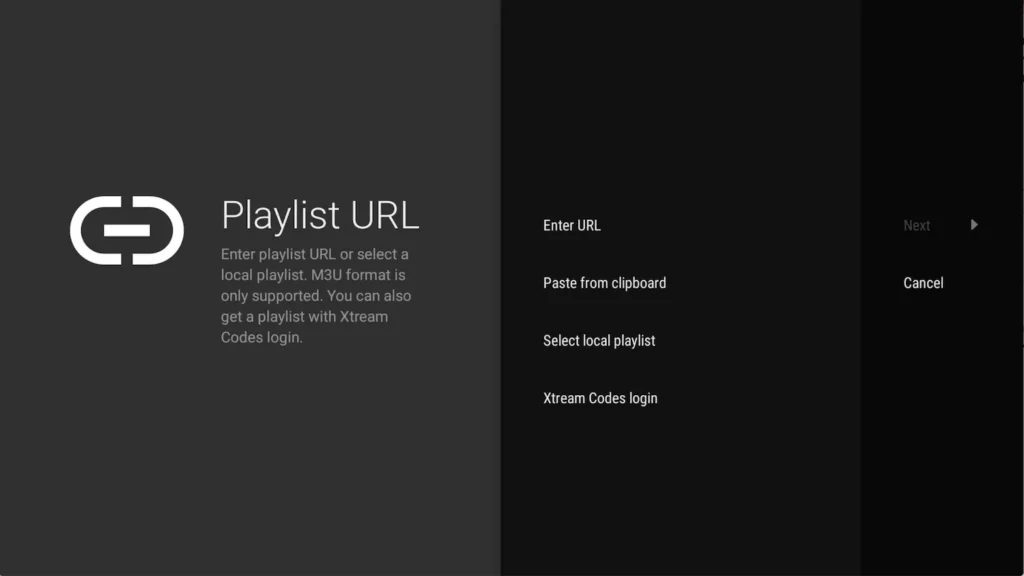
Step 2: Choose the Xtream Codes login method
From the available options, select 'Xtream Codes login'. This method is recommended by Tvsmarte as it automatically downloads the EPG and organizes sports bouquets.
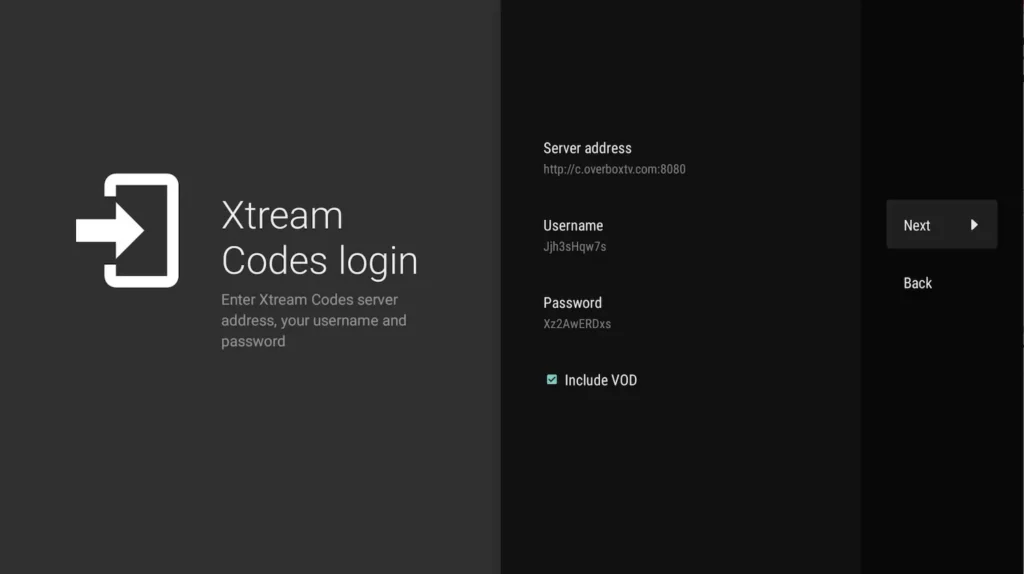
Step 3: Enter the server URL and your credentials
Enter the Tvsmarte server address (including port), your username, and your password. Check the 'Include VOD' option if you wish to access movies and TV series.
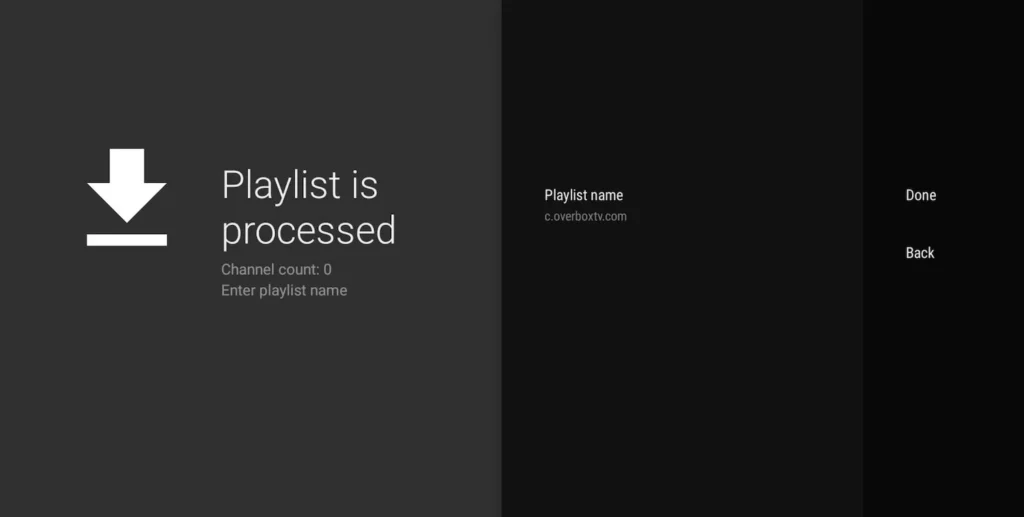
Step 4: Confirm channel loading
TiviMate connects to Tvsmarte servers and confirms success by displaying the number of imported channels and movies. Name your playlist 'Tvsmarte' and click 'Done'.
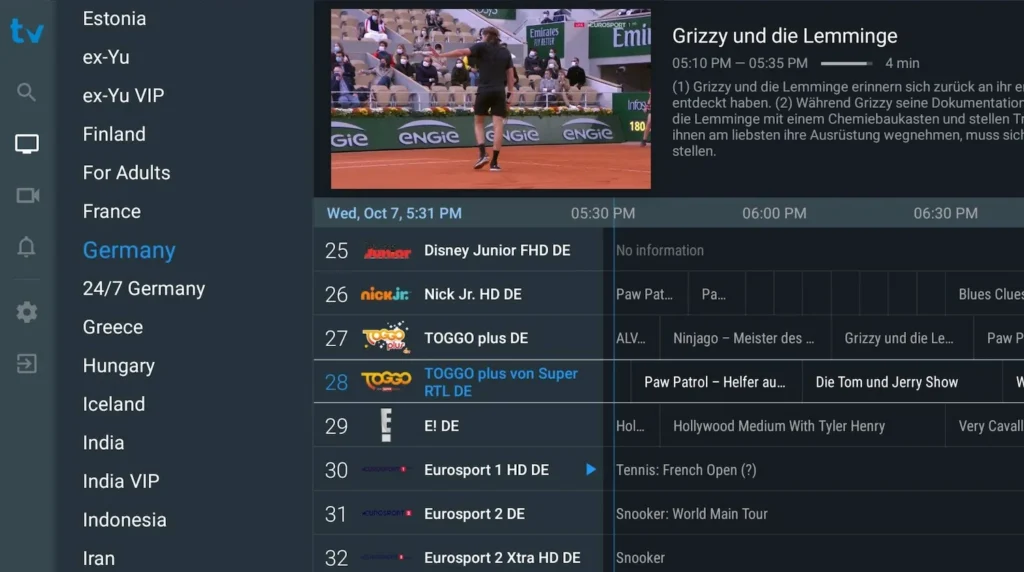
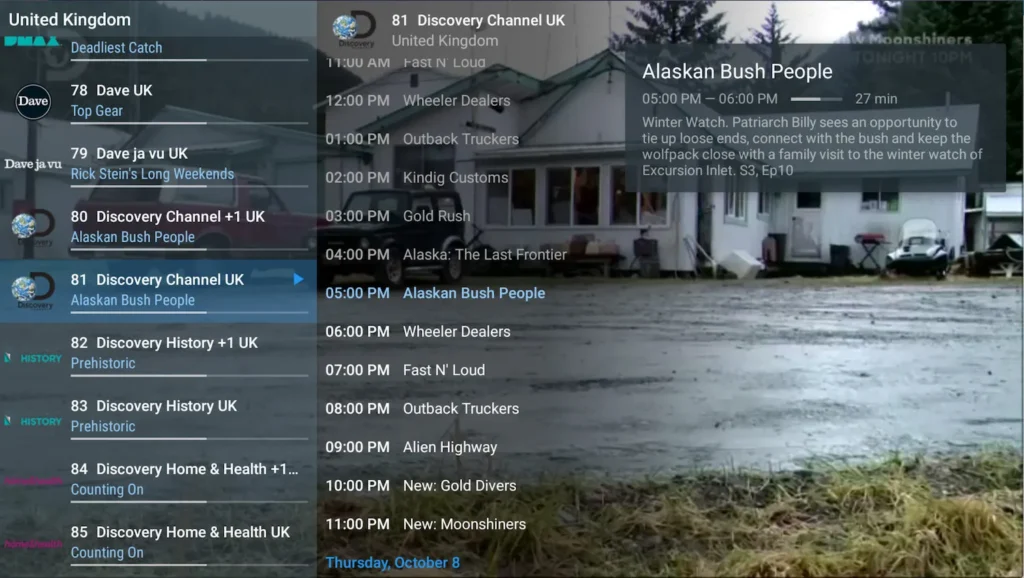
Step 5: Enjoy the interactive live TV guide
You now have access to the full-screen program guide. Browse by category (Sports, Entertainment, Cinema), set reminders, and stream your 4K channels smoothly.
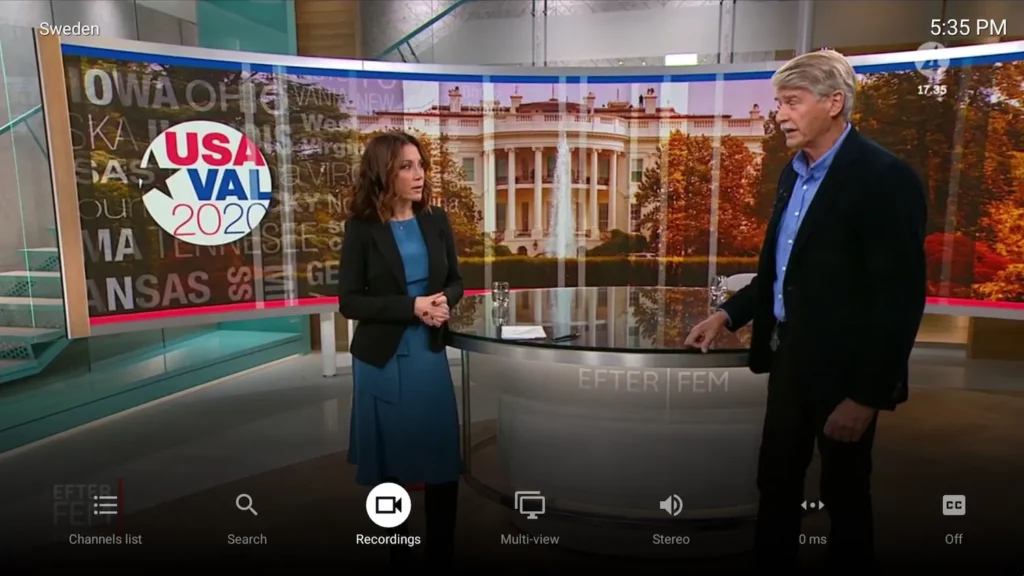
Step 6: Customize playback and full-screen display
During playback, press and hold the center button on your remote control to access audio tracks, subtitles, and quick favorites management.
Common Issues on TiviMate and Solutions
Quick verified solutions from our team to resolve common issues on TiviMate.
Message 'An error occurred: Check your playlist URL or credentials'
Check that you haven't added an accidental space at the end of the username or password. Verify that the server port is correctly included.
How do I unlock TiviMate Premium features?
Download the companion app 'TiviMate Companion' on an Android smartphone to activate an official Premium license linked to your Google Play account.
No EPG displayed on certain channels
In Settings > EPG > EPG Sources, click on your Tvsmarte source and then select 'Update EPG'. You can also manually assign a channel logo and EPG track.
FAQ: TiviMate with Tvsmarte
Everything you need to know about using TiviMate with your subscription.
No, TiviMate is exclusively built for the Android TV / Google TV and Fire OS (Amazon Fire TV Stick) operating systems. For Samsung or LG, we recommend IPTV Smarters Pro or Smart IPTV.
Yes, provided your Tvsmarte subscription includes 2 concurrent streams (such as our Supreme 2 Screens plan).
You can choose the destination folder in settings: on your device's internal storage, on a USB flash drive, or via a shared network folder (SMB/NAS).
Activate Your Tvsmarte Subscription Now
Receive your Xtream Codes credentials and M3U link in under 5 minutes via email and WhatsApp. Test risk-free with our 7-day money-back guarantee.