


Perfect Player: Installation and Setup with Tvsmarte
Discover our complete guide to configuring Perfect Player IPTV with your Tvsmarte subscription. Ideal for smart TVs and Android boxes, this player stands out with its semi-transparent OSD interface and low system resource consumption.
- Your Tvsmarte M3U playlist link (with active VOD option)
- The Perfect Player IPTV app installed on your smartphone, tablet, Android TV, or Windows PC
- A stable internet connection of at least 15 Mbps
Why Use Perfect Player with Tvsmarte
An ultra-lightweight interface built for fast channel zapping and flawless compatibility with Tvsmarte M3U playlists.
Enjoy a clean interface that adapts to any screen resolution without overloading your device's processor.
Organize thousands of Tvsmarte channels by country and theme, cleanly displayed in interactive folders.
Easily switch between hardware and software decoding to guarantee smooth 60 FPS playback on any hardware.
Installation and Setup of Perfect Player — Step-by-Step
Follow each detailed step below to configure your Tvsmarte streams in Perfect Player.
Step 1: Access Perfect Player settings
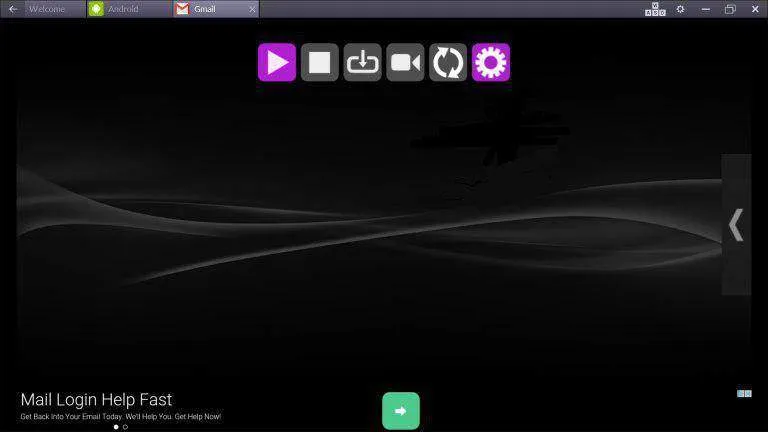
Launch the Perfect Player app on your device. In the top toolbar, click the purple gear icon to open the general settings panel.
Step 2: Add your Tvsmarte M3U playlist link
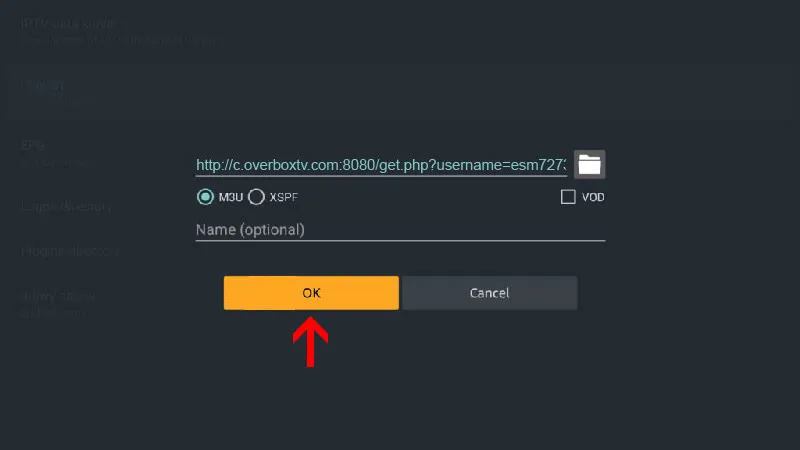
In the settings menu, select 'General' then click 'Playlist'. Paste your full M3U link provided by Tvsmarte, check the 'M3U' option, enable the 'VOD' box to include movies and series, and confirm by clicking 'OK'.
Step 3: Organize channels into bouquet folders
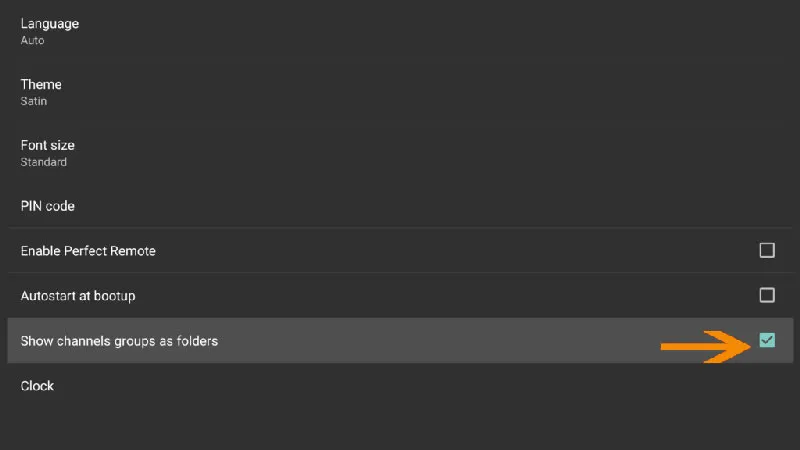
Return to settings and go to the 'GUI' section (User Interface). Check the 'Show channels groups as folders' option. This cleanly organizes your Tvsmarte channels by thematic bouquets.
Step 4: Launch update and sync channels
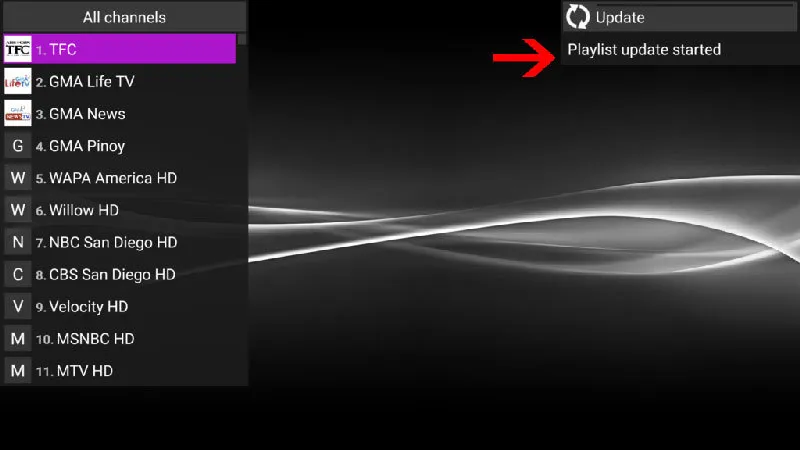
Return to the main screen. In the top right corner, the notification 'Update: Playlist update started' confirms the download of all your live Tvsmarte channels.
Step 5: Optimize decoding and video buffer size
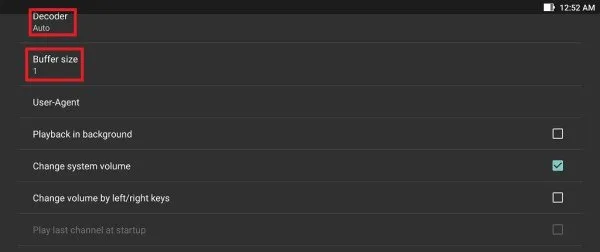
If you experience micro-stuttering on 4K streams, open the 'Playback' menu. Set the decoder to 'Auto' or 'Hardware' and adjust 'Buffer size' to 1 or 2 seconds for silky-smooth playback.
Common Issues on Perfect Player and Solutions
Quick verified solutions from our team to resolve common issues on Perfect Player.
Playlist won't load or displays 'Playlist update failed'
Verify that your M3U URL is entered without typos and starts with http://. You can also test your link in a web browser to confirm it downloads the file correctly.
Stuttering or audio sync lag on 60 FPS sports channels
In Settings > Playback, change the Decoder setting from 'Auto' to 'Hardware' (HW). On older graphics processors, the 'HW+' mode also resolves playback lag.
How do I manually refresh newly added channels?
Press the Menu button on your remote control or click the refresh icon (circular arrows) in the top toolbar to force an update.
FAQ: Perfect Player with Tvsmarte
Everything you need to know about using Perfect Player with your subscription.
Yes, Perfect Player has a very stable native Windows version available as a free download from its official website, alongside the Android version.
Perfect Player supports the interactive EPG guide and catch-up archive, but does not offer direct recording to an external hard drive on most versions.
Long-press on a channel group and select 'Hide', or use the group manager in the Perfect Player settings.
Activate Your Tvsmarte Subscription Now
Receive your Xtream Codes credentials and M3U link in under 5 minutes via email and WhatsApp. Test risk-free with our 7-day money-back guarantee.