


Kodi: Installation and Setup with Tvsmarte
Complete installation and setup guide for the PVR IPTV Simple Client add-on on Kodi (v19 Matrix, v20 Nexus, v21 Omega) with your Tvsmarte subscription. Benefit from a premium open-source media platform featuring 4K HDR, Dolby Atmos, and audio passthrough support.
- Kodi installed on your device (Windows, Mac, Android TV, Nvidia Shield, Fire TV, Raspberry Pi)
- The M3U playlist URL and XMLTV EPG guide URL provided by Tvsmarte
- A fast and reliable internet connection
Why Use Kodi with Tvsmarte
The most powerful and customizable media player available, tailored for home theater enthusiasts.
Full support for HDR10, Dolby Vision, and lossless multi-channel audio decoding (Dolby Digital Plus, DTS).
The PVR IPTV Simple Client add-on integrates directly into Kodi's TV menu with smooth zapping and electronic program guide.
Kodi is completely free, open-source, and free from ads or invasive trackers.
Installation and Setup of Kodi — Step-by-Step
Follow each detailed step below to configure your Tvsmarte streams in Kodi.
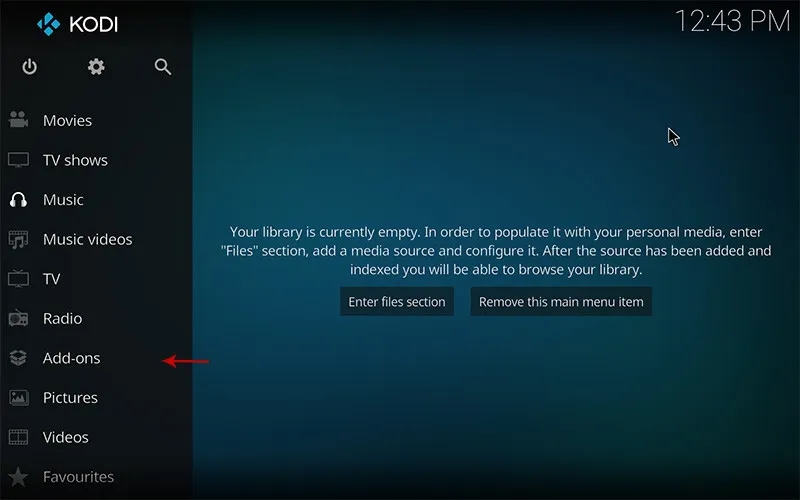
Step 1: Access the Add-ons manager
Launch Kodi on your device. In the left-hand main menu, click the 'Add-ons' tab.
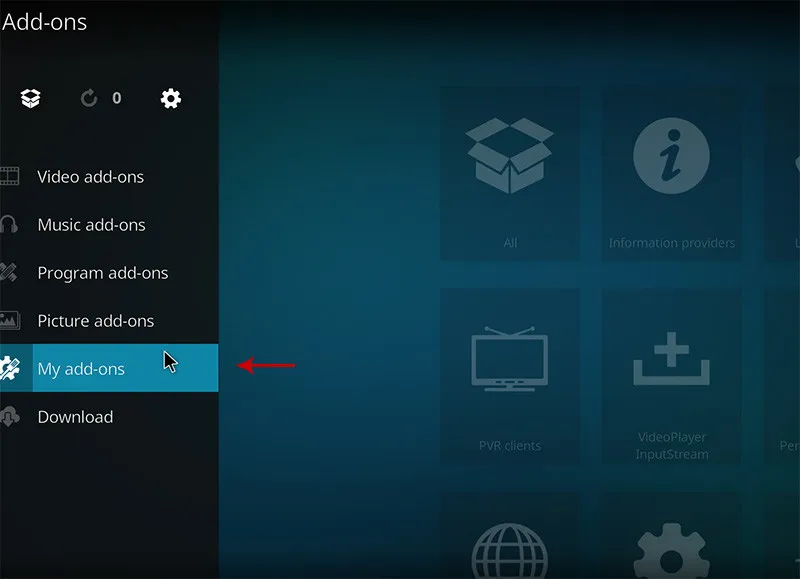
Step 2: Browse the official Kodi add-on repository
Click the open package icon (Add-on Browser), then select 'Install from repository'.
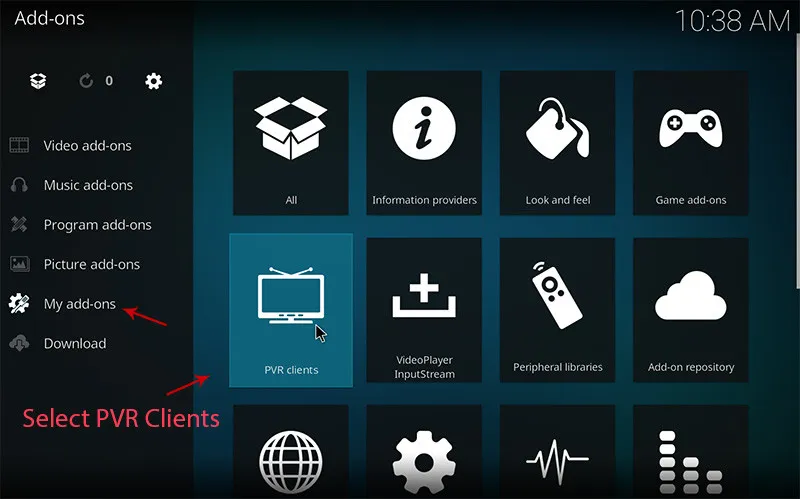
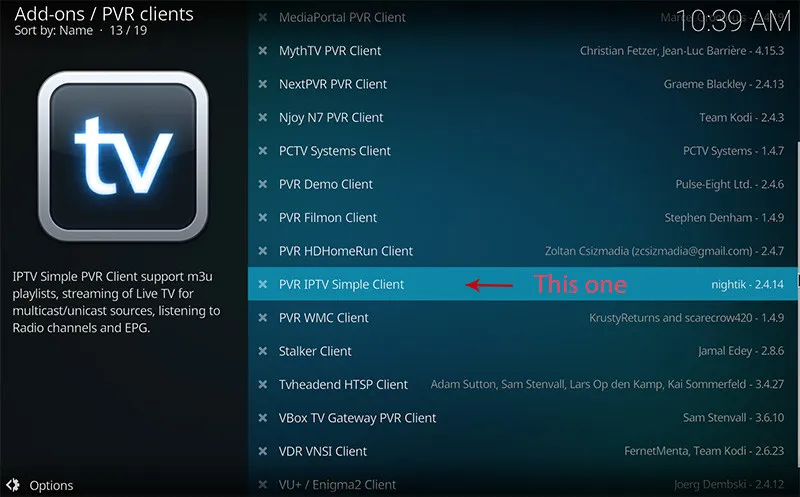
Step 3: Select PVR IPTV Simple Client
In the category list, open 'PVR clients' and scroll down to 'PVR IPTV Simple Client'. Click on it.
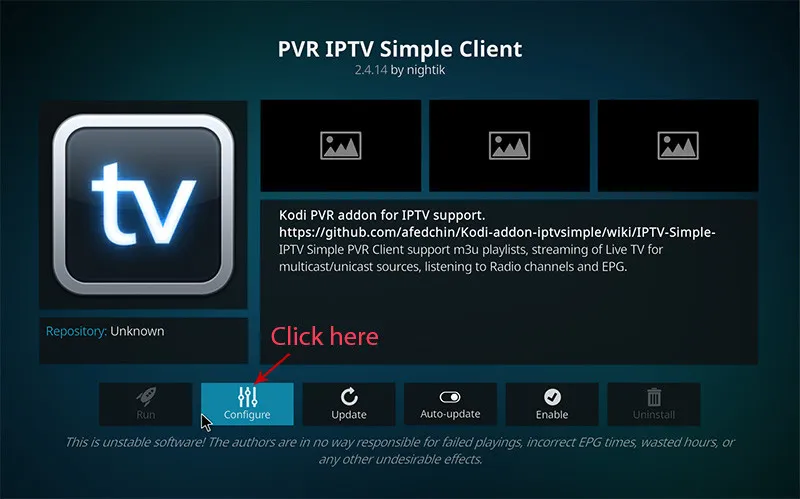
Step 4: Install and open the add-on configuration
Click the 'Install' button. Once the add-on is activated, click 'Configure' to open the connection settings.
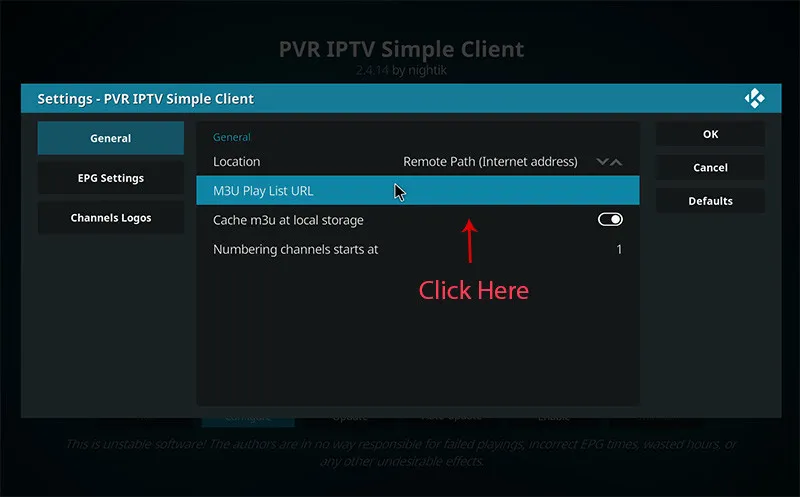
Step 5: Choose remote path for your M3U playlist
In the 'General' tab, set the Location to 'Remote Path (Internet address)'.
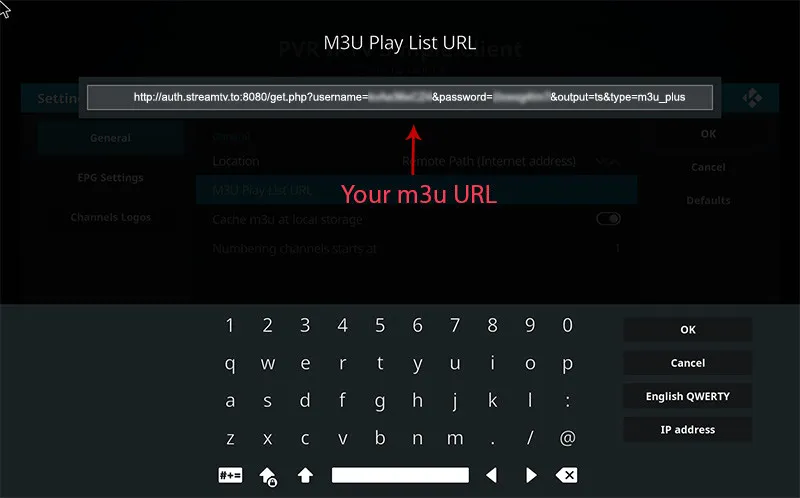
Step 6: Paste your Tvsmarte M3U playlist link
Click on 'M3U Play List URL' and paste the full address of your Tvsmarte subscription. Click OK to confirm.
Step 7: Configure the EPG guide URL (XMLTV)
In the 'EPG Settings' tab, also select the remote path and paste the XMLTV URL provided by Tvsmarte to load broadcast schedules.
Step 8: Restart Kodi and watch your channels
Restart Kodi or trigger a PVR database reload. Head to the 'TV' section in the main menu to enjoy your Tvsmarte channels in 4K.
Common Issues on Kodi and Solutions
Quick verified solutions from our team to resolve common issues on Kodi.
The 'TV' menu does not appear on the Kodi home screen
Verify that the PVR IPTV Simple Client add-on is enabled (green checkmark). Go to Kodi Settings > PVR & Live TV > General and enable the TV option.
Channel loading takes very long on startup
In PVR IPTV Simple Client configuration under the Advanced tab, check 'Cache M3U at local storage' to significantly speed up Kodi startup.
Audio/video sync issue on FHD channels
In Settings > Player > Videos, set 'Adjust display refresh rate' to 'On start / stop' to synchronize your display's refresh rate to 50Hz/60Hz.
FAQ: Kodi with Tvsmarte
Everything you need to know about using Kodi with your subscription.
Kodi is not available in the official iOS/tvOS App Store due to Apple restrictions (it requires complex sideloading). On iPhone, iPad, and Apple TV, we recommend iPlayTV or GSE Smart IPTV.
Yes, if your TV supports HDMI-CEC, your regular TV remote will directly control the Kodi interface without any extra setup.
PVR IPTV Simple Client is optimized for live TV channels. To easily browse thousands of Tvsmarte VOD movies and series, IPTV Smarters Pro provides a more seamless user experience.
Activate Your Tvsmarte Subscription Now
Receive your Xtream Codes credentials and M3U link in under 5 minutes via email and WhatsApp. Test risk-free with our 7-day money-back guarantee.