


Smart IPTV: Installation and Setup with Tvsmarte
Complete guide to installing and configuring the classic Smart IPTV app (SIPTV) on your Samsung, LG, or Android Smart TV with Tvsmarte. Follow our step-by-step tutorial to pair your MAC address and upload your 4K M3U playlist via the official siptv.app web portal.
- An active Tvsmarte subscription with your M3U playlist link
- The Smart IPTV app installed on your Samsung, LG, or Android TV box
- Your TV's unique MAC address (displayed upon first launching the app)
- A computer or smartphone to access the siptv.app web portal
Why Use Smart IPTV with Tvsmarte
The benchmark player for Smart TVs featuring ultra-fast zapping and seamless native integration on smart TVs.
Built specifically for Samsung Tizen and LG webOS: Smart IPTV integrates flawlessly with your TV's original remote control.
Enjoy silky-smooth channel changing powered by a playback engine finely tuned for smart TV processors.
Manage, update, or reset your channel playlist remotely without ever typing tedious URLs with your TV remote.
Installation and Setup of Smart IPTV — Step-by-Step
Follow each detailed step below to configure your Tvsmarte streams in Smart IPTV.
Step 1: Download Smart IPTV and note your MAC address
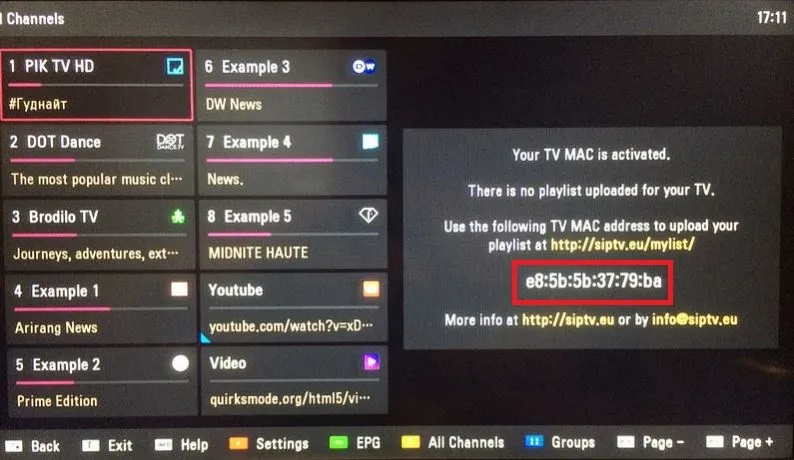
Install the Smart IPTV app from the LG Content Store (LG TVs) or Samsung Apps (Samsung TVs). Open the app: the welcome screen displays your physical MAC address formatted as XX:XX:XX:XX:XX:XX (e.g., 00:1a:79:xx:xx:xx). Note down this address carefully.
Step 2: Access siptv.app portal and upload your Tvsmarte link
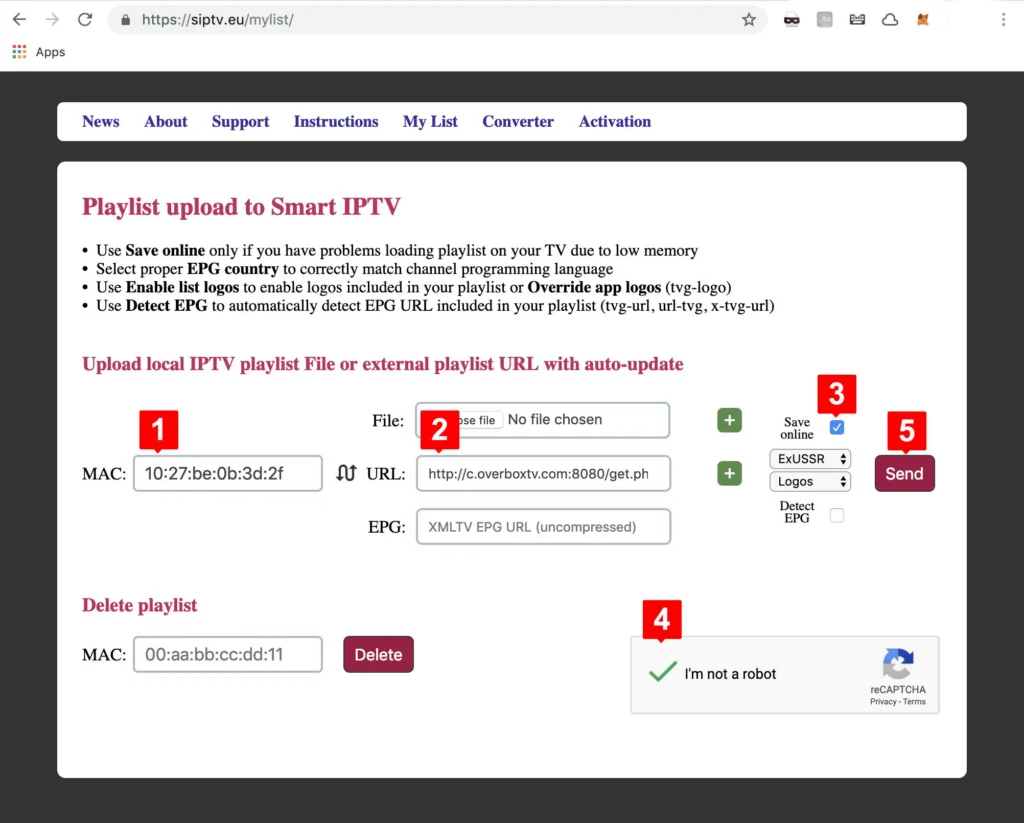
From your computer or smartphone, visit the official website https://siptv.app/mylist/. In the 'Upload playlist to Smart IPTV' section, enter your MAC address in the 'MAC' field, paste your Tvsmarte M3U link into the 'Link' field, check 'Keep online', complete the 'I'm not a robot' captcha, and click 'Send'.
Step 3: Clear old playlists and restart the app
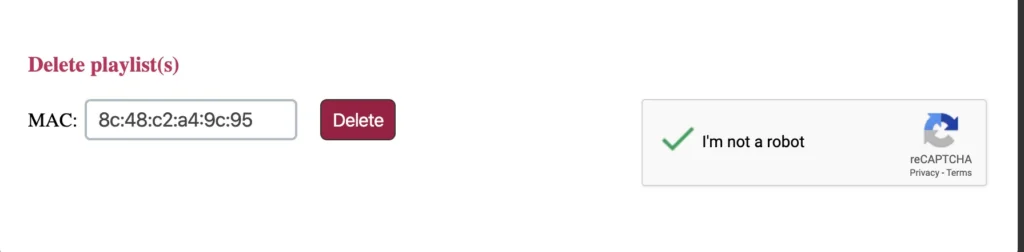
If you previously had an old channel list configured, use the 'Delete playlist' tool on siptv.app to prevent bouquet conflicts. Then return to your TV and press the '0' or 'Reload' button on your remote control to load your Tvsmarte channels.
Step 4: Enjoy your live Tvsmarte channels
Your 4K and Full HD live channels, along with the EPG TV guide, will now appear on your screen. Use the blue button on your remote to filter by bouquet (Sports, Cinema, General) and enjoy your favorite programming.
Common Issues on Smart IPTV and Solutions
Quick verified solutions from our team to resolve common issues on Smart IPTV.
Message 'Check playlist URL' or empty channel list on launch
Check that your Tvsmarte M3U link was uploaded without leading or trailing spaces on siptv.app. Make sure you checked the 'Keep online' box when uploading.
The app displays 'Trial period expired'
Smart IPTV provides a 7-day free trial. After that, a one-time lifetime activation fee of €5.49 must be completed on https://siptv.app/activation/ using your MAC address.
Frequent buffering or 'Stream error' message
In Smart IPTV settings (red button or Options menu), switch the stream type from HLS to MPEG-TS or enable the extended buffer option to smooth out 4K streaming.
FAQ: Smart IPTV with Tvsmarte
Everything you need to know about using Smart IPTV with your subscription.
No, Smart IPTV is strictly a media player. To stream TV channels, movies, and series, you must connect an active subscription like Tvsmarte.
No, the Smart IPTV license is strictly tied to the physical MAC address of your TV. Each screen requires its own activation.
Press the blue button on your TV remote to cycle through channel groups (USA, Sports, UK, Canada, Cinema, etc.) provided by Tvsmarte.
Activate Your Tvsmarte Subscription Now
Receive your Xtream Codes credentials and M3U link in under 5 minutes via email and WhatsApp. Test risk-free with our 7-day money-back guarantee.