


IP Television: Installation and Setup with Tvsmarte
Learn how to install and use IP Television on your iPhone, iPad, Apple TV, or Mac with your Tvsmarte subscription. Follow our step-by-step tutorial to sync live channels and VOD libraries using M3U or Xtream Codes with seamless iCloud synchronization.
- An active Tvsmarte subscription with your M3U link or Xtream Codes login
- The IP Television app installed from the Apple App Store
- An active Apple ID logged in for automatic iCloud syncing
Why Use IP Television with Tvsmarte
An application engineered specifically for the Apple ecosystem featuring iCloud sync across all your devices.
Add your Tvsmarte subscription on your iPhone and instantly access it on your iPad, Mac, and Apple TV.
Browse the active television grid and plan your evening entertainment with ease.
Cast video streams to AirPlay 2 screens or keep watching in a floating PiP window while using other apps.
Installation and Setup of IP Television — Step-by-Step
Follow each detailed step below to configure your Tvsmarte streams in IP Television.
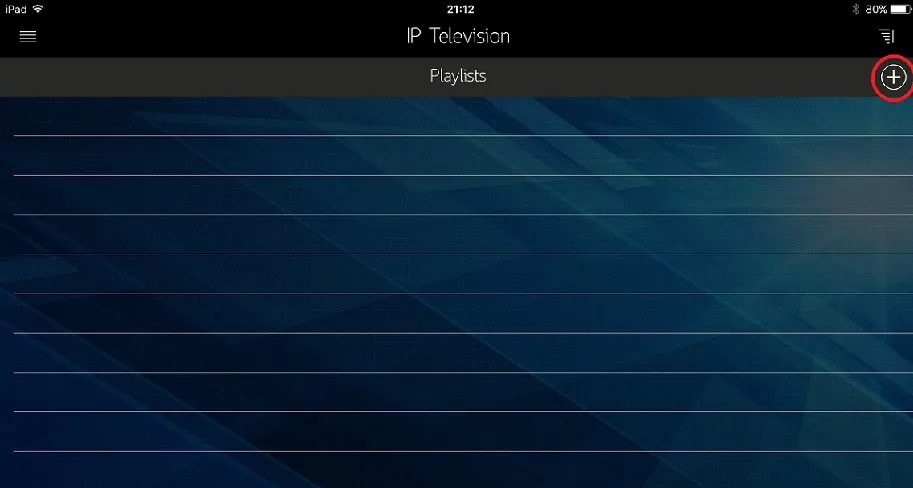
Step 1: Open IP Television and Tap the Add Button (+)
Launch IP Television on your iPhone, iPad, or Apple TV. On the main playlists screen, tap the '+' button in the top-right corner to add a new channel source.
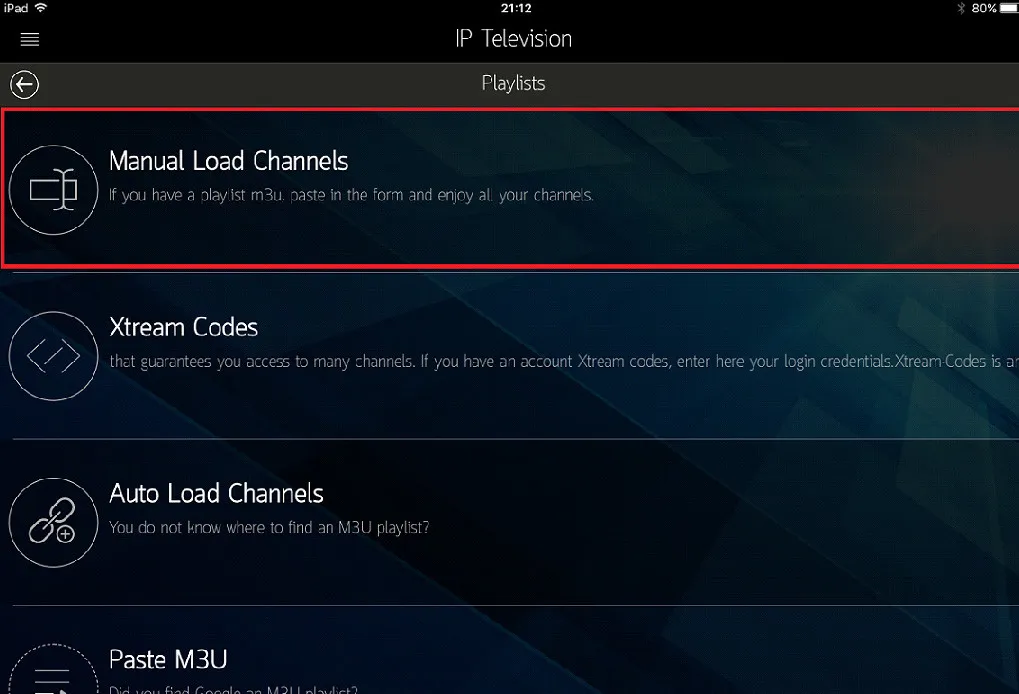
Step 2: Choose M3U or Xtream Codes Format
The app presents multiple import methods: choose 'Insert Playlist URL' for standard M3U links, or select 'Xtream Codes' to input direct credentials.
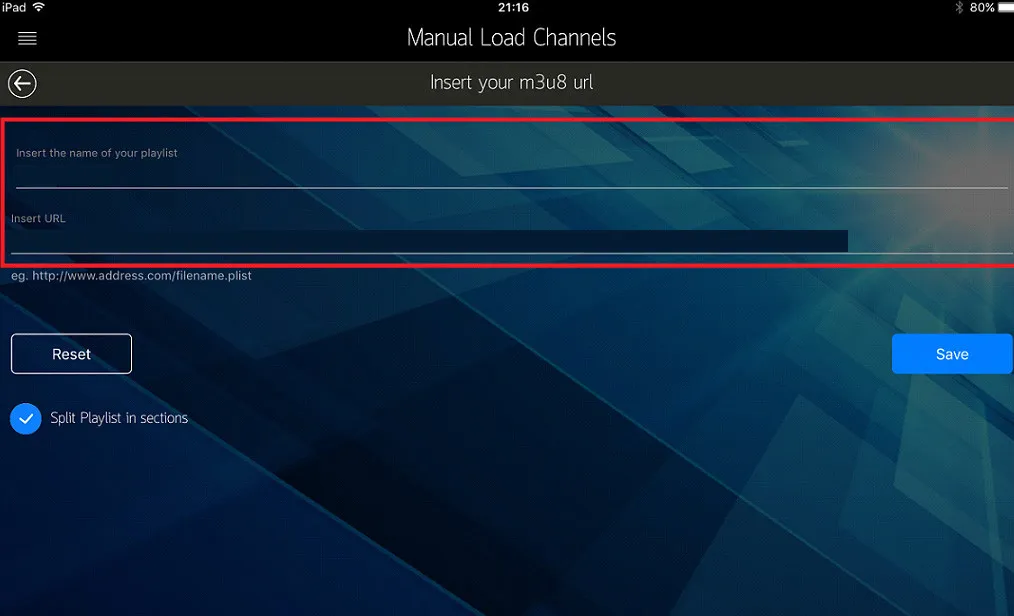
Step 3: Enter Tvsmarte Details and Save
Name your playlist (e.g., 'Tvsmarte'), paste your streaming URL received by email, and tap 'Save'. The app will download your channels and update the EPG guide.
Common Issues on IP Television and Solutions
Quick verified solutions from our team to resolve common issues on IP Television.
Error loading M3U playlist
Ensure the copied link is complete, starts with http://, and contains no missing parameters. When streaming on cellular 4K/5G data, confirm data restrictions are turned off.
Channels do not sync with Apple TV
Verify that both your iPhone and Apple TV are signed in to the identical iCloud account and that 'iCloud Drive' is enabled for IP Television in iOS Settings.
No audio on select 4K streams
Inside IP Television settings, change the internal playback engine from 'Default' to 'VLC' or 'Advanced Player' to decode Dolby Digital AC3/E-AC3 audio tracks.
FAQ: IP Television with Tvsmarte
Everything you need to know about using IP Television with your subscription.
IP Television is typically priced around $2.99 on the App Store as a universal one-time purchase covering iPhone, iPad, and Apple TV.
Yes, you can minimize video playback to a floating corner window while multitasking across iOS apps.
No, IP Television is strictly exclusive to Apple iOS, iPadOS, macOS, and tvOS platforms.
Activate Your Tvsmarte Subscription Now
Receive your Xtream Codes credentials and M3U link in under 5 minutes via email and WhatsApp. Test risk-free with our 7-day money-back guarantee.