


Home IPTV: Installation and Setup with Tvsmarte
Learn how to install and configure Home IPTV on your LG or Samsung Smart TV with your Tvsmarte subscription. Follow our simple step-by-step guide to pair your TV ID and upload your M3U playlist via the hp-iptv.com web portal.
- An active Tvsmarte subscription with your M3U URL
- The Home IPTV app installed on your Samsung or LG Smart TV
- Your unique 'TV ID' or MAC address displayed on your screen
- A smartphone or computer to access the hp-iptv.com portal
Why Use Home IPTV with Tvsmarte
A lightweight, clutter-free Smart TV app designed to stream your favorite channels smoothly without bogging down your television.
Instant startup and clean navigation, ideal for entry-level and mid-range Smart TVs.
Easily upload and manage your Tvsmarte playlist from your PC or phone without using your TV remote.
Automatic organization of channels by country and genre, complete with real-time TV guide data.
Installation and Setup of Home IPTV — Step-by-Step
Follow each detailed step below to configure your Tvsmarte streams in Home IPTV.
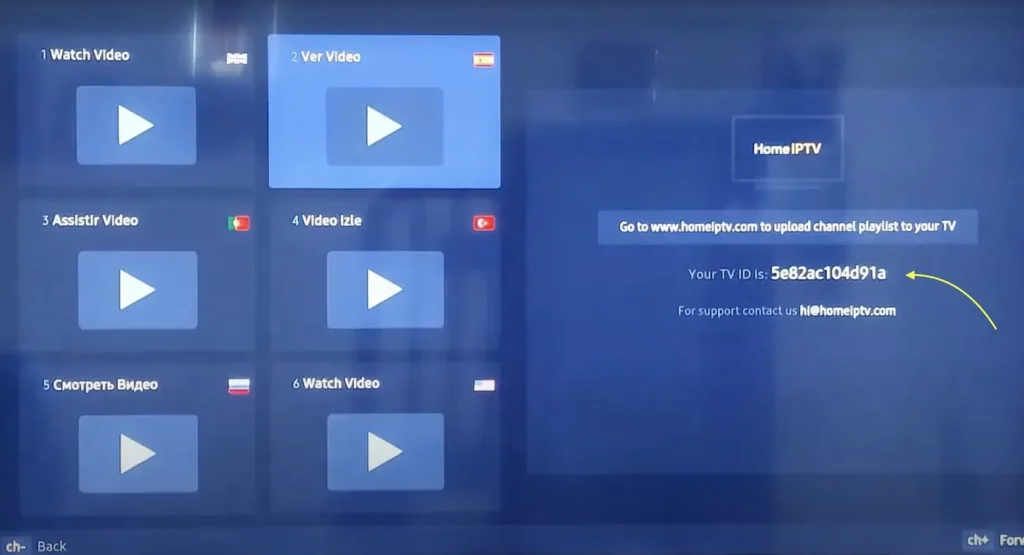
Step 1: Download Home IPTV and Note Your TV ID
Install Home IPTV from the LG Content Store or Samsung Smart Hub. Launch the app: the main screen displays your unique device identifier labeled 'TV ID' or 'MAC Address'. Write this ID down carefully.
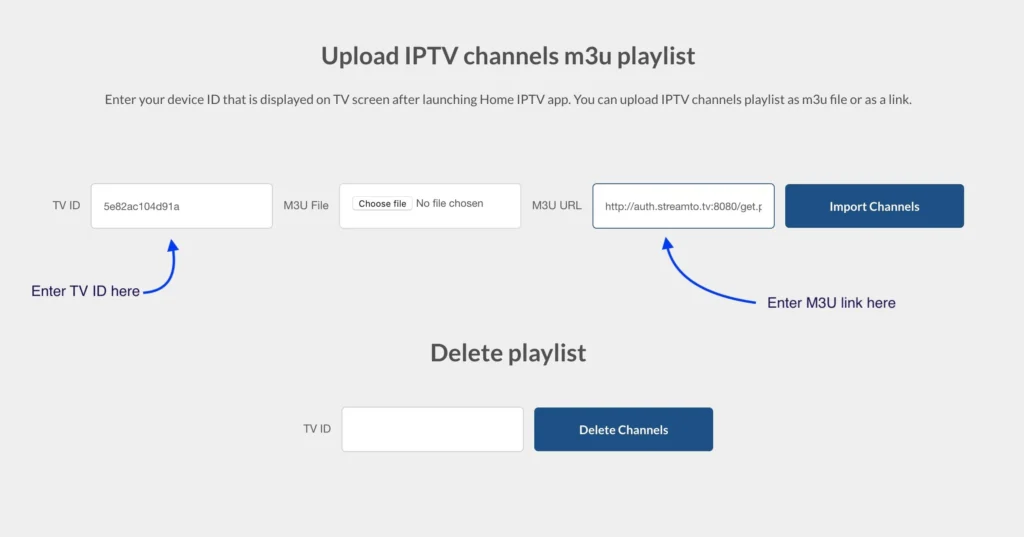
Step 2: Visit hp-iptv.com and Upload Your Tvsmarte Link
Open a web browser on your phone or PC and visit https://hp-iptv.com. In the upload form, enter your 'TV ID', paste your complete Tvsmarte M3U URL into the 'M3U URL' field, and click 'Upload' or 'Import'.
Step 3: Reload the App and Enjoy Your 4K Channels
Once the success confirmation appears on the website, switch back to your TV. Click the 'Reload' button or restart Home IPTV. Your live Tvsmarte channels will automatically appear with the EPG.
Common Issues on Home IPTV and Solutions
Quick verified solutions from our team to resolve common issues on Home IPTV.
Channel list does not load after uploading
Completely exit Home IPTV on your TV and relaunch it. If the issue persists, verify that you copied the complete M3U link without any trailing spaces.
Trial period expired message
Home IPTV offers a free trial. Once expired, a small one-time activation fee (approx. €5 to €6 for lifetime access) is required on the official site to continue using the service.
Stuttering or buffering on some channels
Inside the Home IPTV settings, lower the preferred video buffer or switch to FHD streams if your Internet speed fluctuates.
FAQ: Home IPTV with Tvsmarte
Everything you need to know about using Home IPTV with your subscription.
Yes, Home IPTV is available on Android TV via the Google Play Store, although it is most popular on LG and Samsung Smart TVs.
Yes, the hp-iptv.com portal allows you to add multiple M3U links under the same TV ID and switch between them anytime.
Yes, you can lock adult or sensitive categories with a 4-digit PIN directly in the Home IPTV settings.
Activate Your Tvsmarte Subscription Now
Receive your Xtream Codes credentials and M3U link in under 5 minutes via email and WhatsApp. Test risk-free with our 7-day money-back guarantee.