Universal Windows Platform (UWP) App
Fully optimized for Windows and Xbox with DirectX hardware acceleration for crisp 4K HEVC playback.



Learn how to install and configure MyIPTV Player on your Windows 10, Windows 11 PC, or Xbox console with your Tvsmarte subscription. Follow our step-by-step guide to load your M3U link and sync the official EPG guide for seamless 4K viewing through a native Microsoft Store application.
The premier Tvsmarte solution for the Windows and Xbox ecosystem—smooth, responsive, and completely free.
Fully optimized for Windows and Xbox with DirectX hardware acceleration for crisp 4K HEVC playback.
Automatic scheduling synchronization with an organized chronological live timeline.
Capture live TV broadcasts and save stream recordings directly to your storage drive.
Urmează fiecare pas detaliat de mai jos pentru a configura fluxurile Tvsmarte în MyIPTV Player.
Launch MyIPTV Player on your PC or Xbox. In the top navigation bar, click on the 'Settings' tab to access source and playlist configuration.
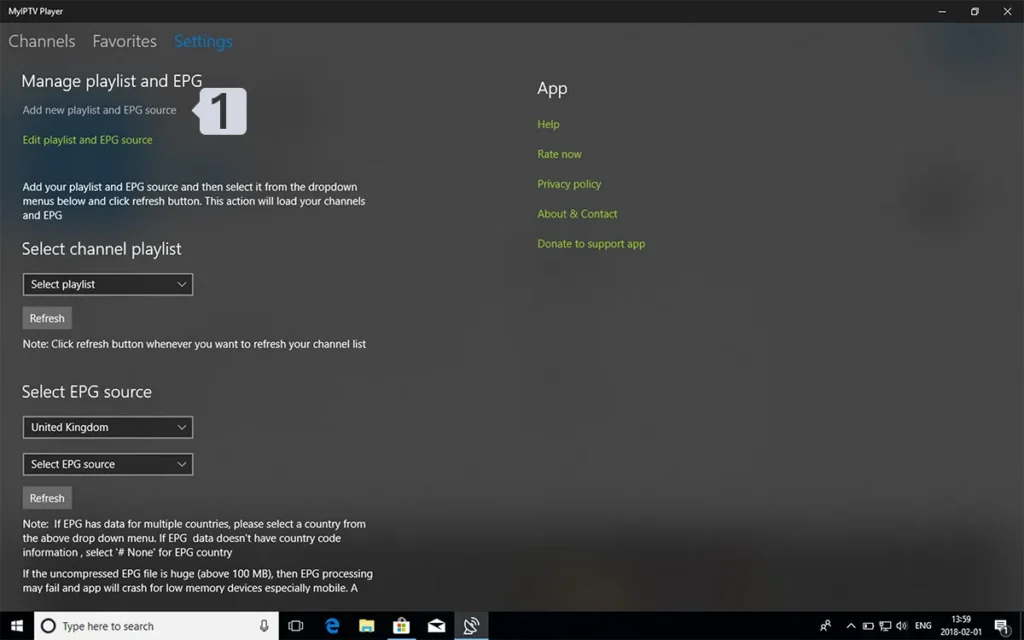
In the settings menu, locate the 'Manage playlist and EPG' section and click the 'Add new playlist and EPG source' link to open the remote stream input form.
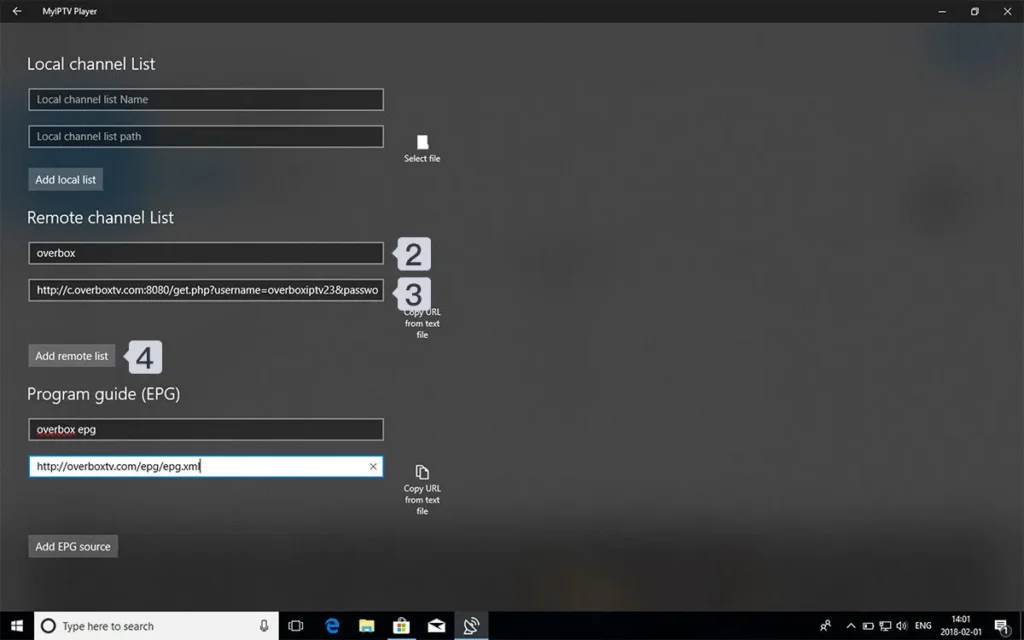
Under the 'Remote channels' section, type 'Tvsmarte' into the 'Playlist name' field. In the 'Playlist URL' field, paste your complete Tvsmarte M3U URL. Then click the 'Add playlist' button to save the source.
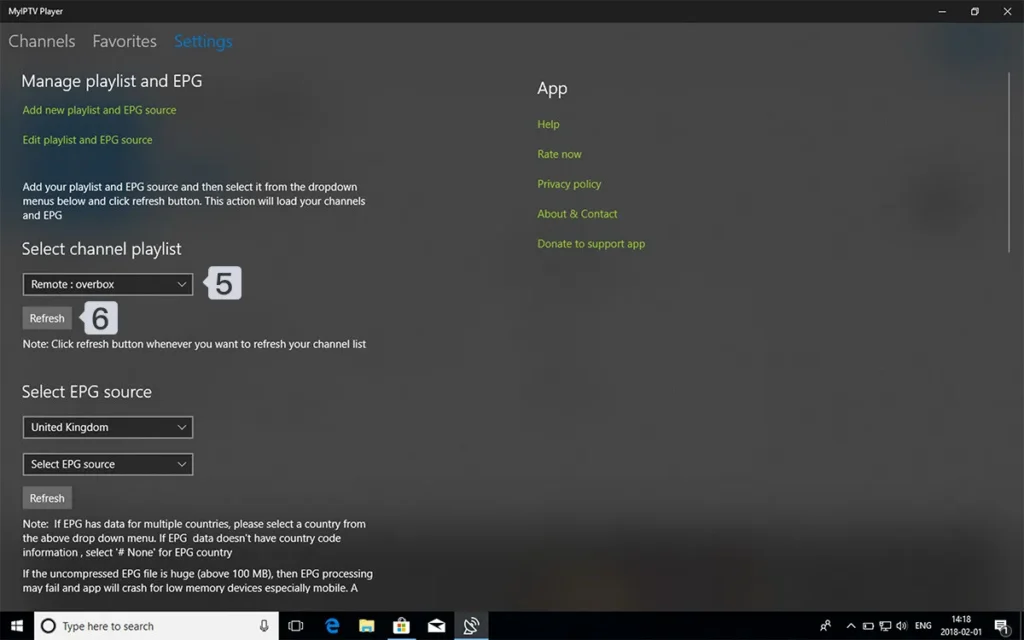
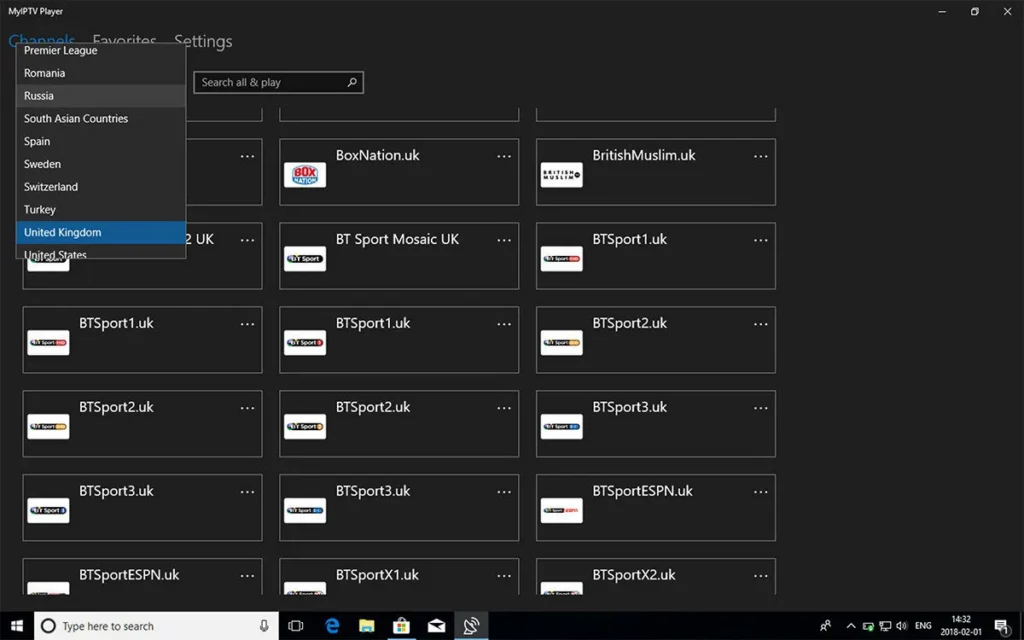
Return to the 'Select Playlist' section in settings. From the dropdown menu, select 'Tvsmarte' and click 'Select'. The app will immediately download and populate your full channel list.
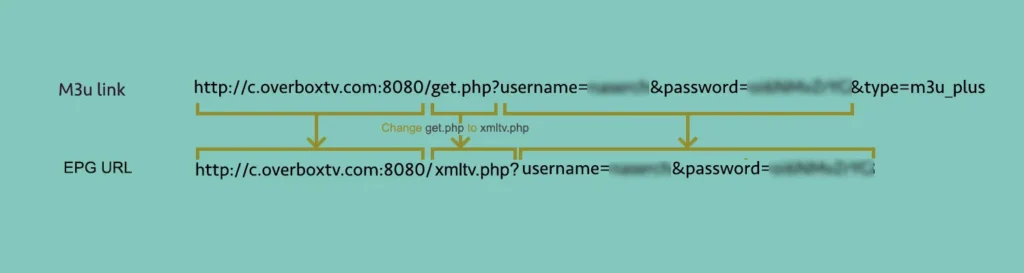
To display complete TV schedules, head back to 'Manage playlist and EPG' under 'EPG source'. Paste the XMLTV EPG URL provided by Tvsmarte, name it, click 'Add EPG source', select it, and click 'Refresh EPG'.
Soluții rapide verificate de echipa noastră pentru problemele frecvente pe MyIPTV Player.
Ensure your PC has active Internet access and that Windows Defender Firewall or third-party antivirus software isn't blocking network requests. Also verify there are no unintended spaces in the M3U link.
In MyIPTV Player settings, enable 'Use hardware acceleration' or switch the video playback engine to 'Media Player' rather than the default engine.
Go to 'Settings', choose your EPG source, and click 'Refresh EPG'. Allow 1 to 2 minutes for the XMLTV data to download and parse.
Tot ce trebuie să știi despre folosirea MyIPTV Player cu abonamentul tău.
Yes, the app is fully navigable using an Xbox wireless controller, offering smooth directional and trigger-based navigation.
Yes, MyIPTV Player is 100% free on the Microsoft Store. An optional developer donation removes the subtle bottom advertising banners.
Yes, MyIPTV Player includes a direct Record feature that saves live stream feeds in TS or MP4 formats directly to your Windows Videos folder.
Primește datele Xtream Codes și linkul M3U în mai puțin de 5 minute prin email și WhatsApp. Testează fără risc cu garanția noastră de rambursare de 24 de ore.