Authentic MAG Set-Top Box Emulation
Access the renowned Stalker Middleware interface with all the comfort of your original TV remote control.



Learn how to configure Smart STB to emulate a MAG / Stalker Portal set-top box directly on your Samsung, LG, or Android Smart TV. Link your Virtual MAC address to Tvsmarte servers and enjoy the classic dedicated Tvsmarte box interface without any extra hardware.
Transform your Smart TV into a true MAG box with a native Stalker portal interface and instant zapping.
Access the renowned Stalker Middleware interface with all the comfort of your original TV remote control.
Switch channels with zero latency and enjoy live real-time previews during sports broadcasts.
Browse the extensive movie and series catalog with summaries, official posters, and automatic playback resumption.
Segui ogni passaggio dettagliato qui sotto per configurare i tuoi flussi Tvsmarte in Smart STB.
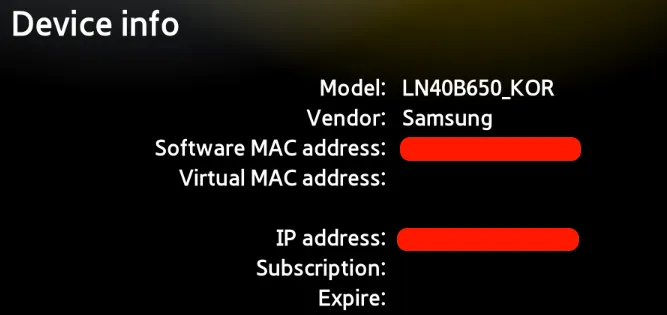
Install and open Smart STB on your TV. Right as it boots up, quickly press 'Enter' or 'OK' on your remote to access system information. Note down the 'Software MAC' and especially the 'Virtual MAC' required to activate your Tvsmarte line.
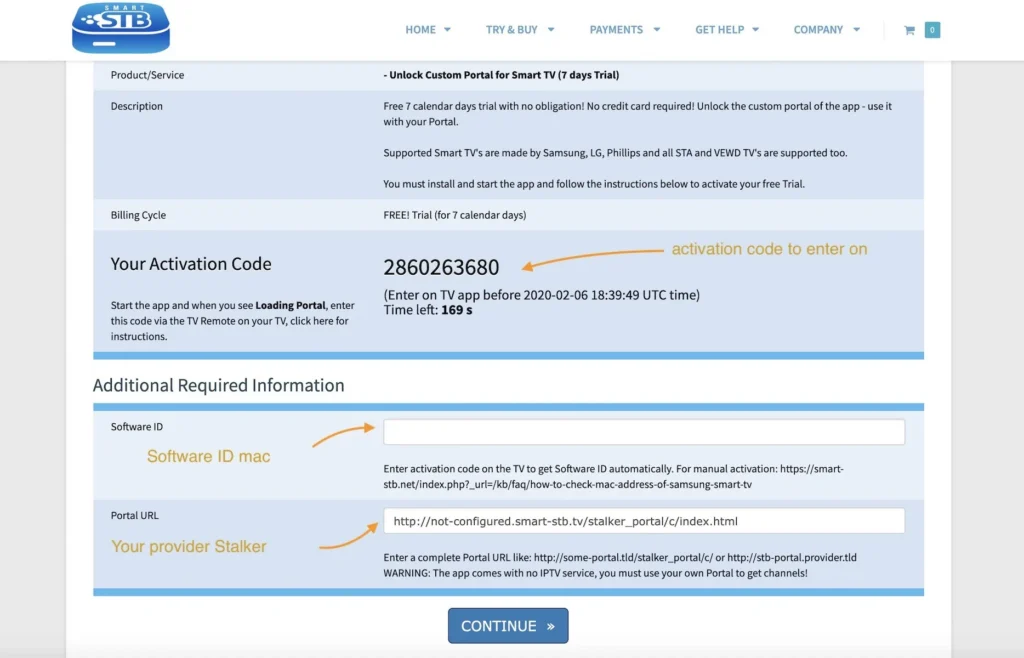
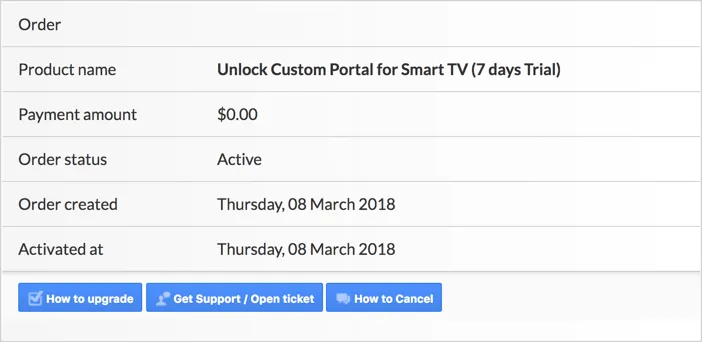
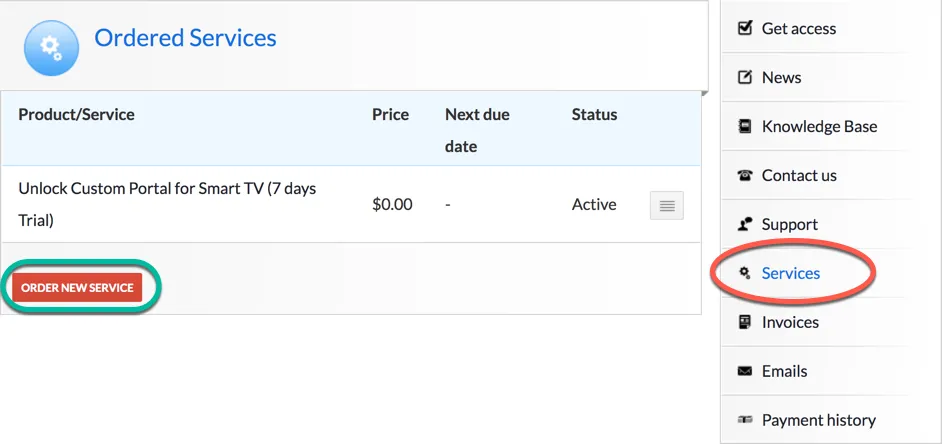
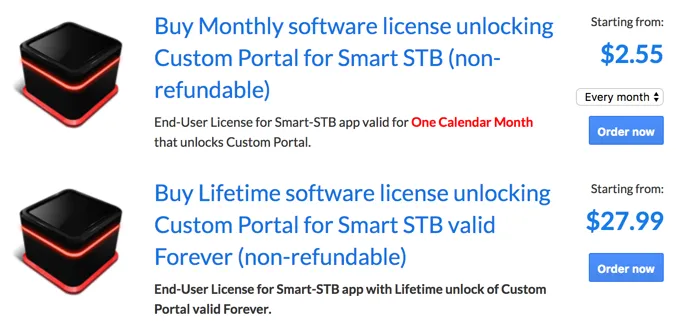
Visit the official Smart STB website (smart-stb.net) to start your free trial or link your license to your Software MAC. This unlocks full access to remote portal configurations.
In the Smart STB settings menu on your TV, navigate to the 'Portals' section. Select the first available portal (Portal 1) to edit its connection parameters.
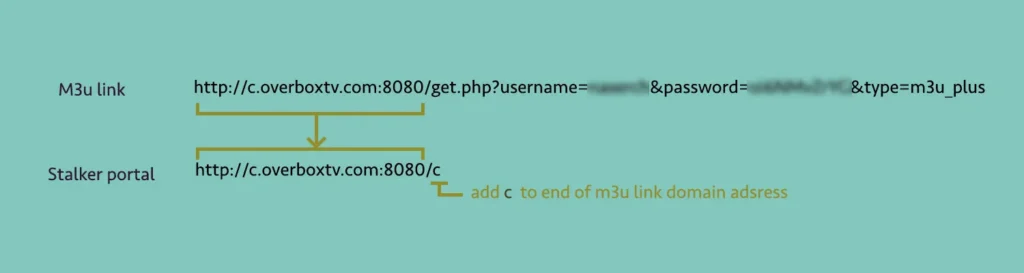
Give your portal a recognizable name (e.g., 'Tvsmarte'). In the 'Portal URL' field, enter the MAG portal address provided by our support team (format http://server:port/c/). Save your changes.
Confirm the new settings by selecting 'Save & Restart'. The application applies the changes and establishes connection with Tvsmarte authentication servers.
The distinctive yellow loading bar familiar from MAG set-top boxes appears: 'Loading Portal'. Your TV bouquets, radio stations, and VOD libraries sync in real time.
You are now inside the classic MAG Stalker interface! Head to 'TV' to browse all channels grouped by country and genre, check the EPG guide, and enjoy 4K streaming with Tvsmarte.
Soluzioni rapide e verificate dal nostro team per risolvere i problemi comuni su Smart STB.
This message indicates that your Virtual MAC address has not yet been registered in our Tvsmarte system. Contact our support team with your exact Virtual MAC address so we can activate it immediately.
Verify that the portal URL ends with '/c/' as indicated in your activation instructions. Restart your router and TV to refresh the DHCP network lease.
As soon as the app starts and the logo appears, press 'Enter' or 'Setup' repeatedly on your remote control to force access to the system menu.
Tutto quello che devi sapere per usare Smart STB con il tuo abbonamento.
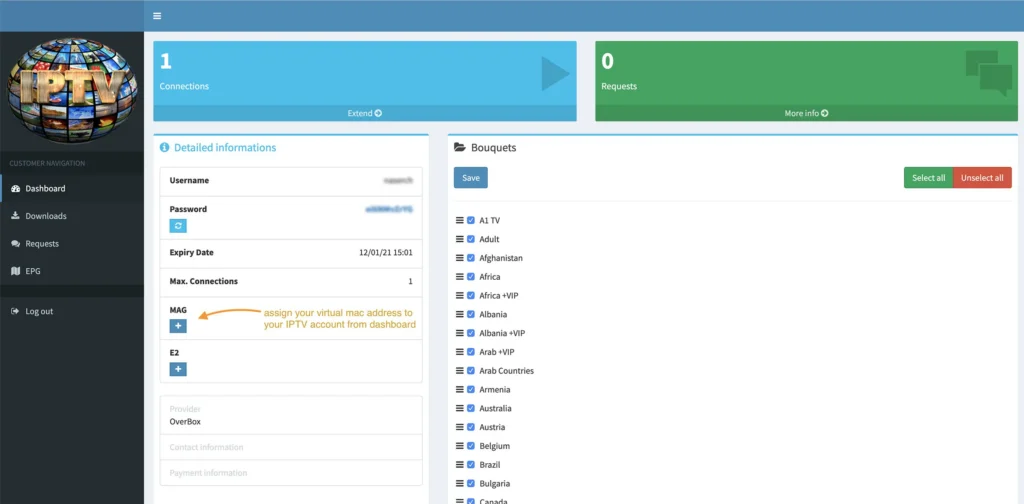
The 'Software MAC' is the physical identifier of the Smart STB app on your TV (used to pay for the app license). The 'Virtual MAC' is the emulated address transmitted to Tvsmarte servers to authenticate and deliver TV streams.
The app offers a full 7-day free trial. Afterward, a paid license (monthly, yearly, or lifetime) is required by the Smart STB developer.
Yes, on Tvsmarte channels that support Catch-Up, press the green or yellow button on your remote control to go back up to 7 days in the broadcast schedule.
Ricevi le credenziali Xtream Codes e il link M3U in meno di 5 minuti via email e WhatsApp. Prova senza rischi con la nostra garanzia di rimborso di 24 ore.